
Dies ist eine alte Version des Dokuments!
Inhaltsverzeichnis

Installation & Einrichtung FreeBSD-Server
Test einer Server-Installation
…nach Möglichkeit ohne Container in irgendeiner Form, damit man das ganze Setup in irgendeiner Form auch noch sichern kann…
Docker ist zwar schön und gut, aber der Wust an Volumes und daß man aus einem mühsam zusammengebastelten Setup nachträglich keine YAML erstellen lassen kann ist recht nervig.
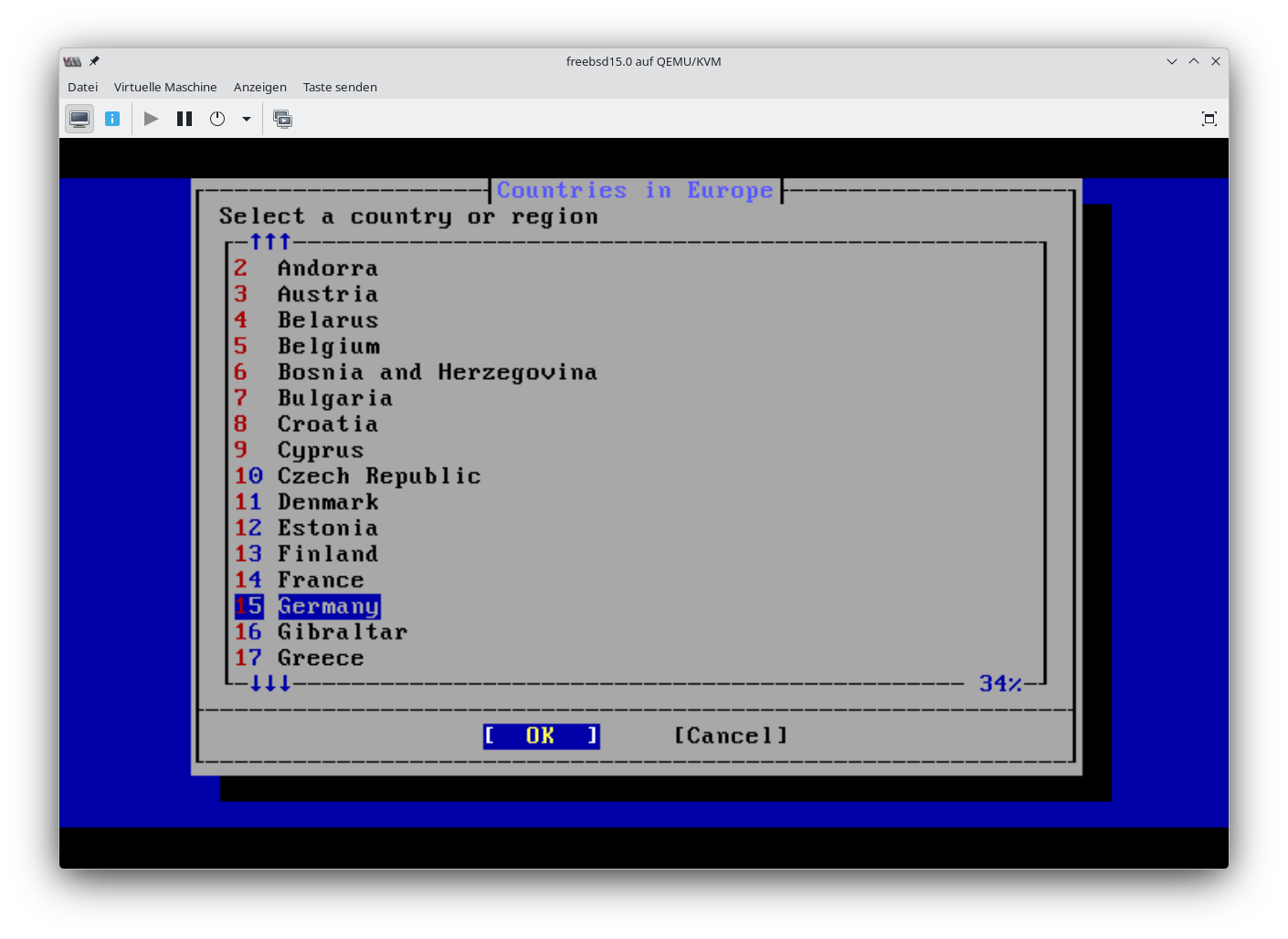
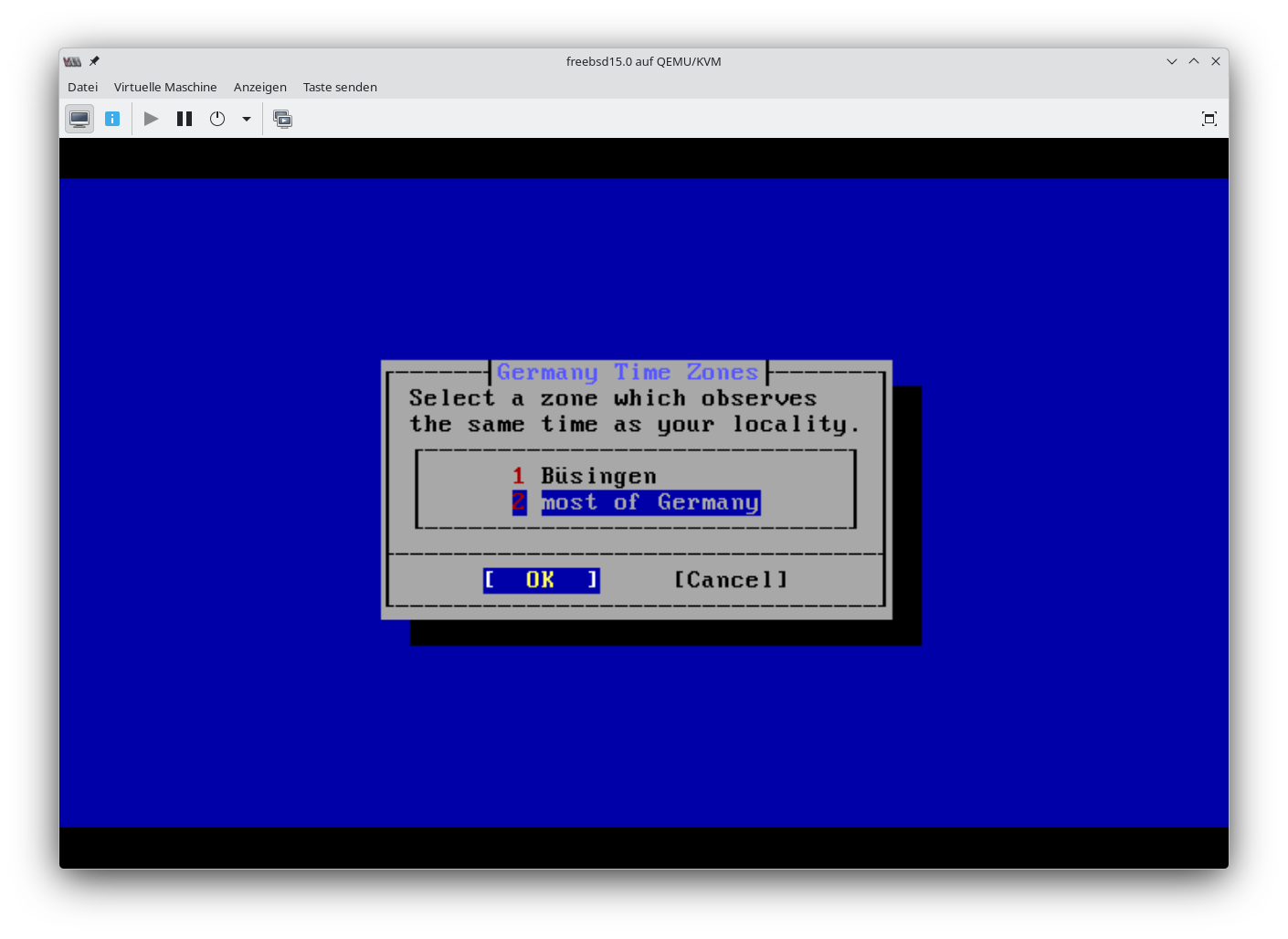
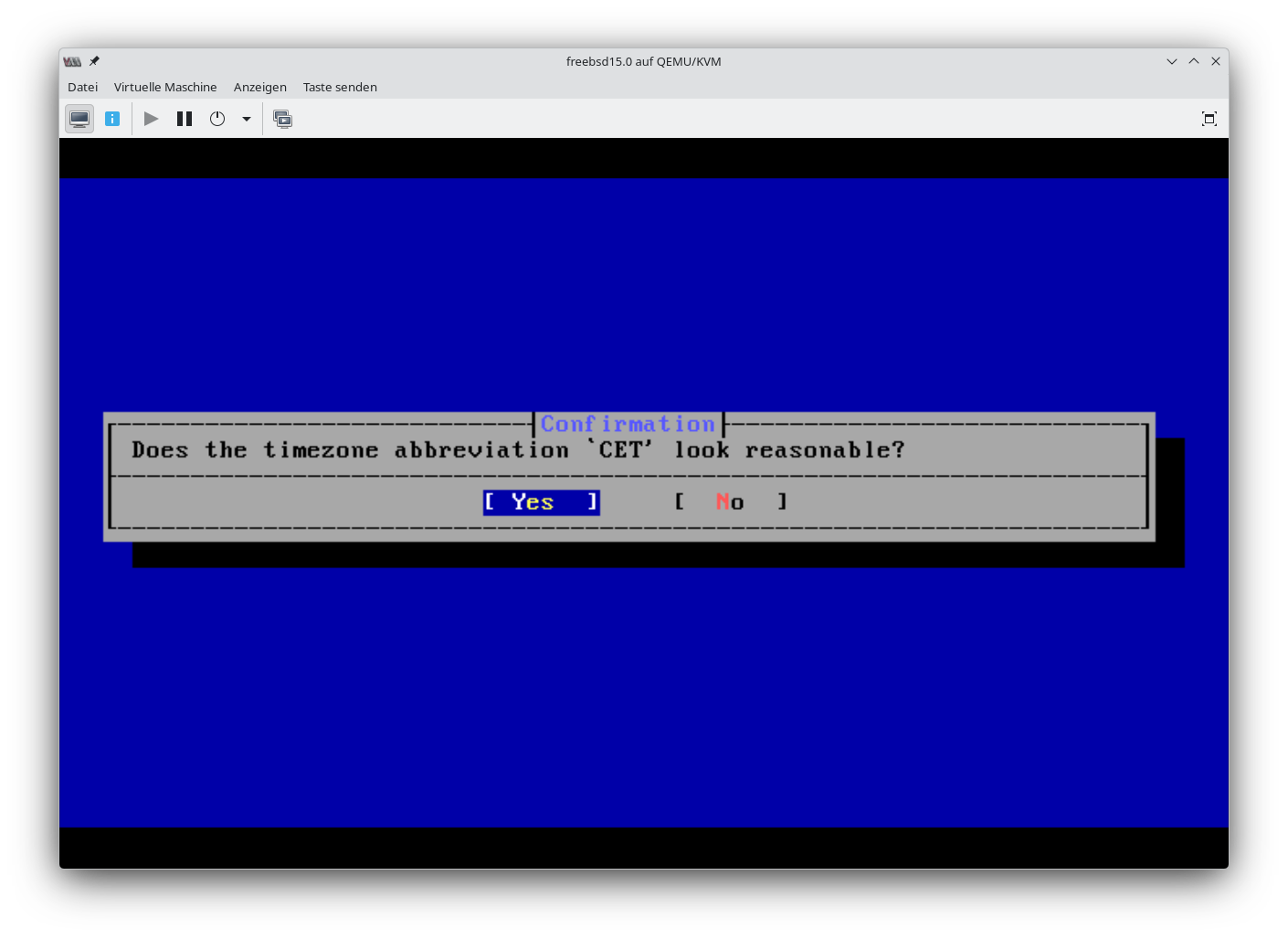
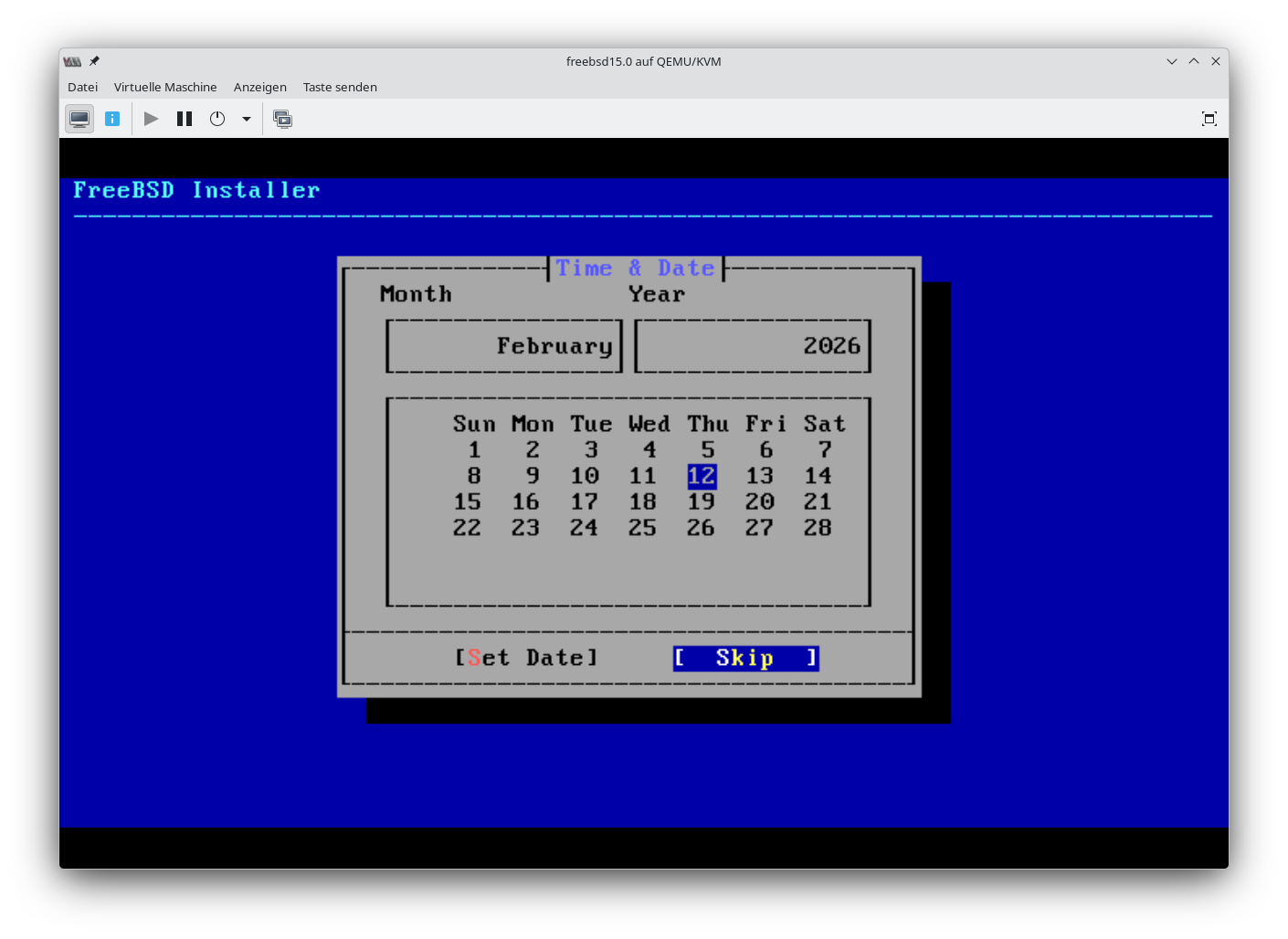
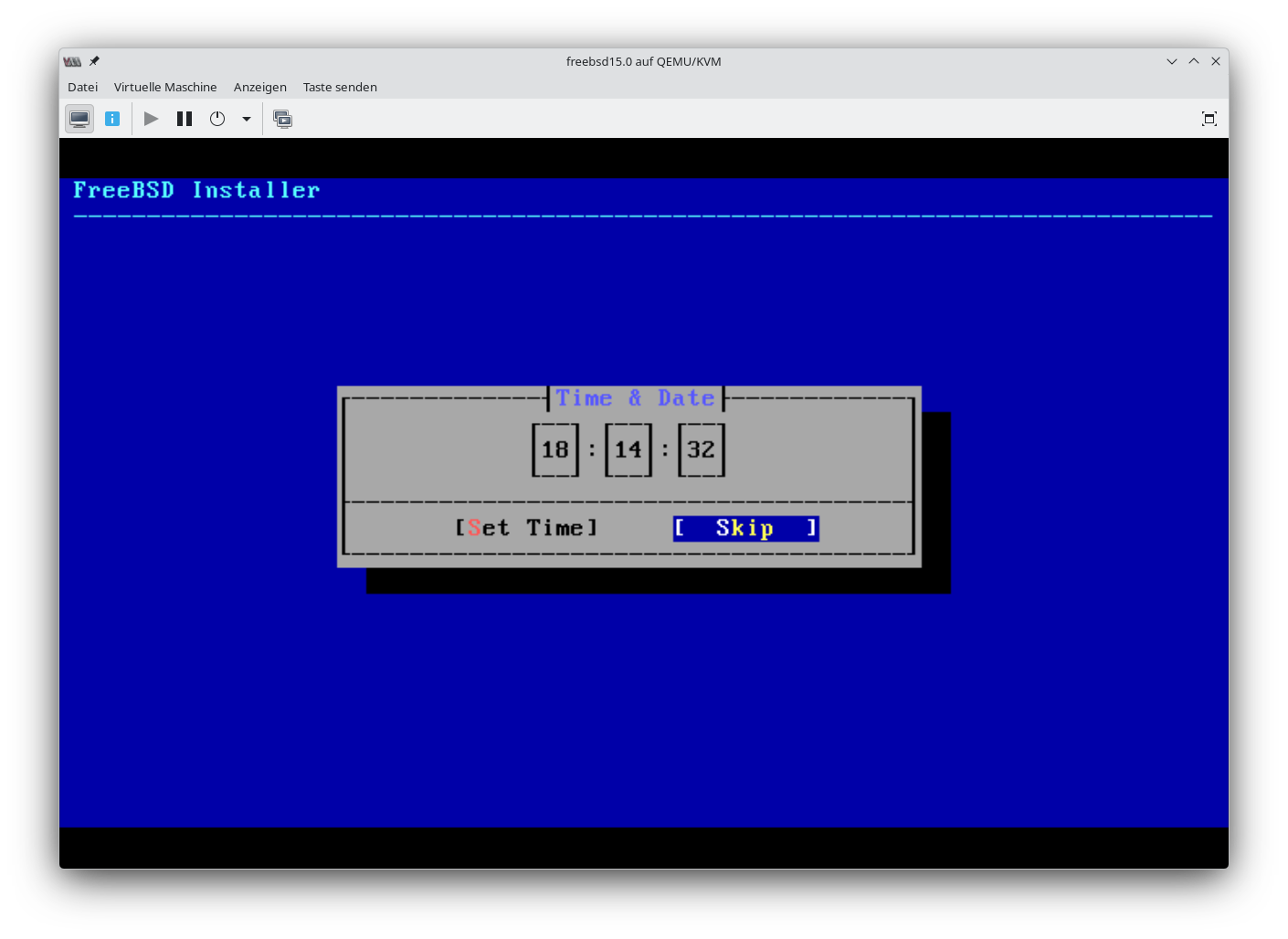
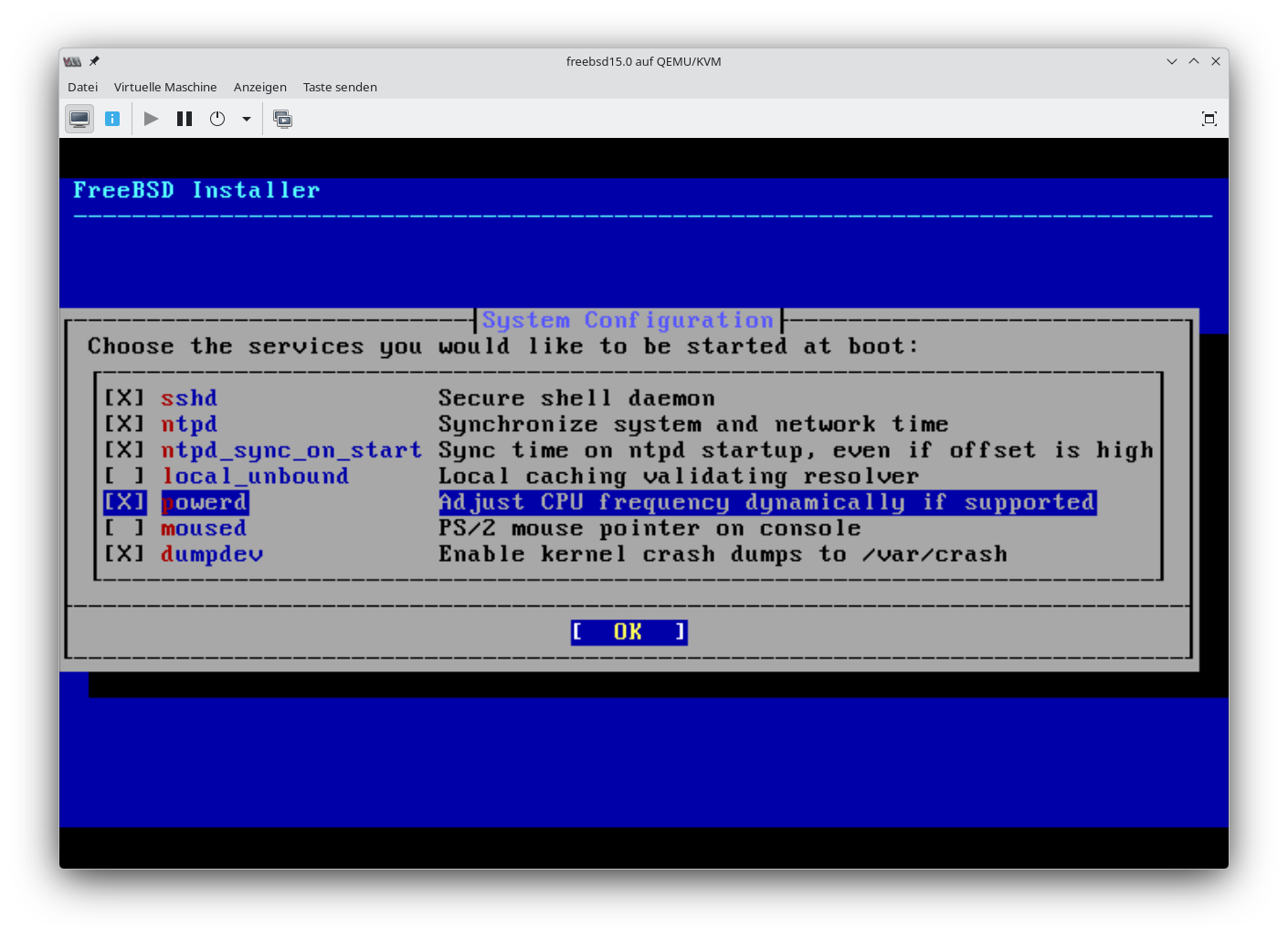
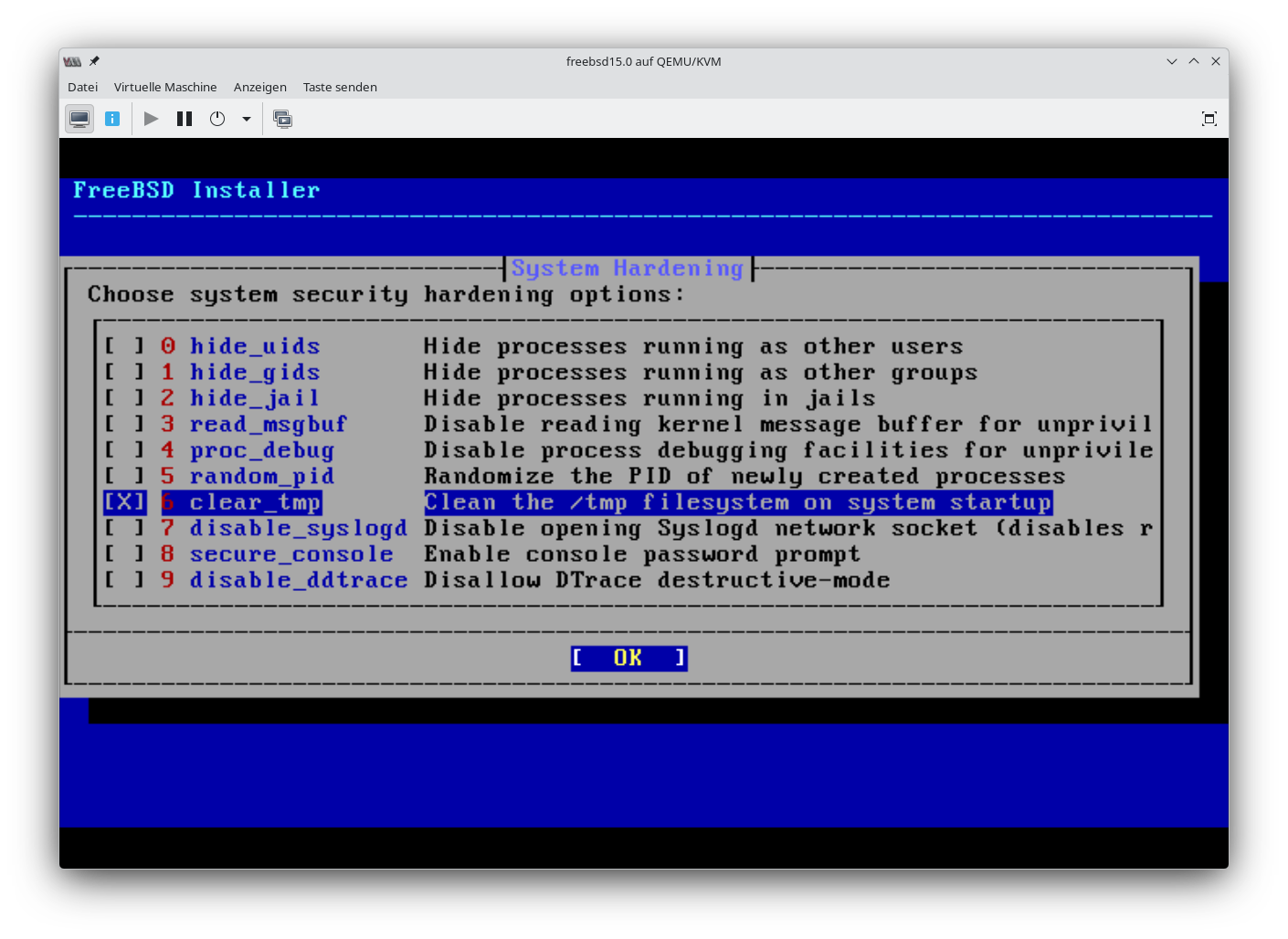
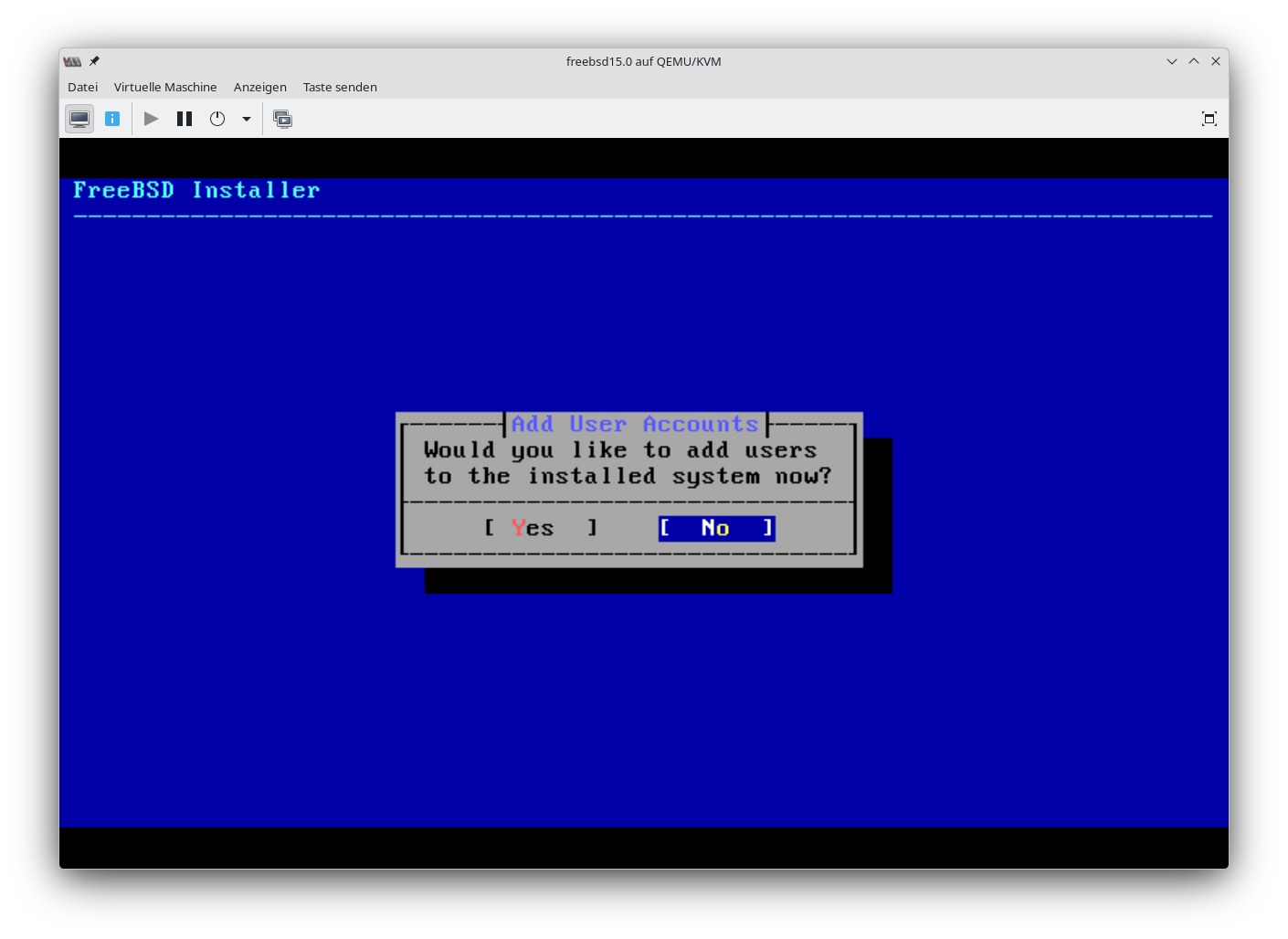
Grundinstallation
Screenshots der Grundinstallation stammen von einer VM.
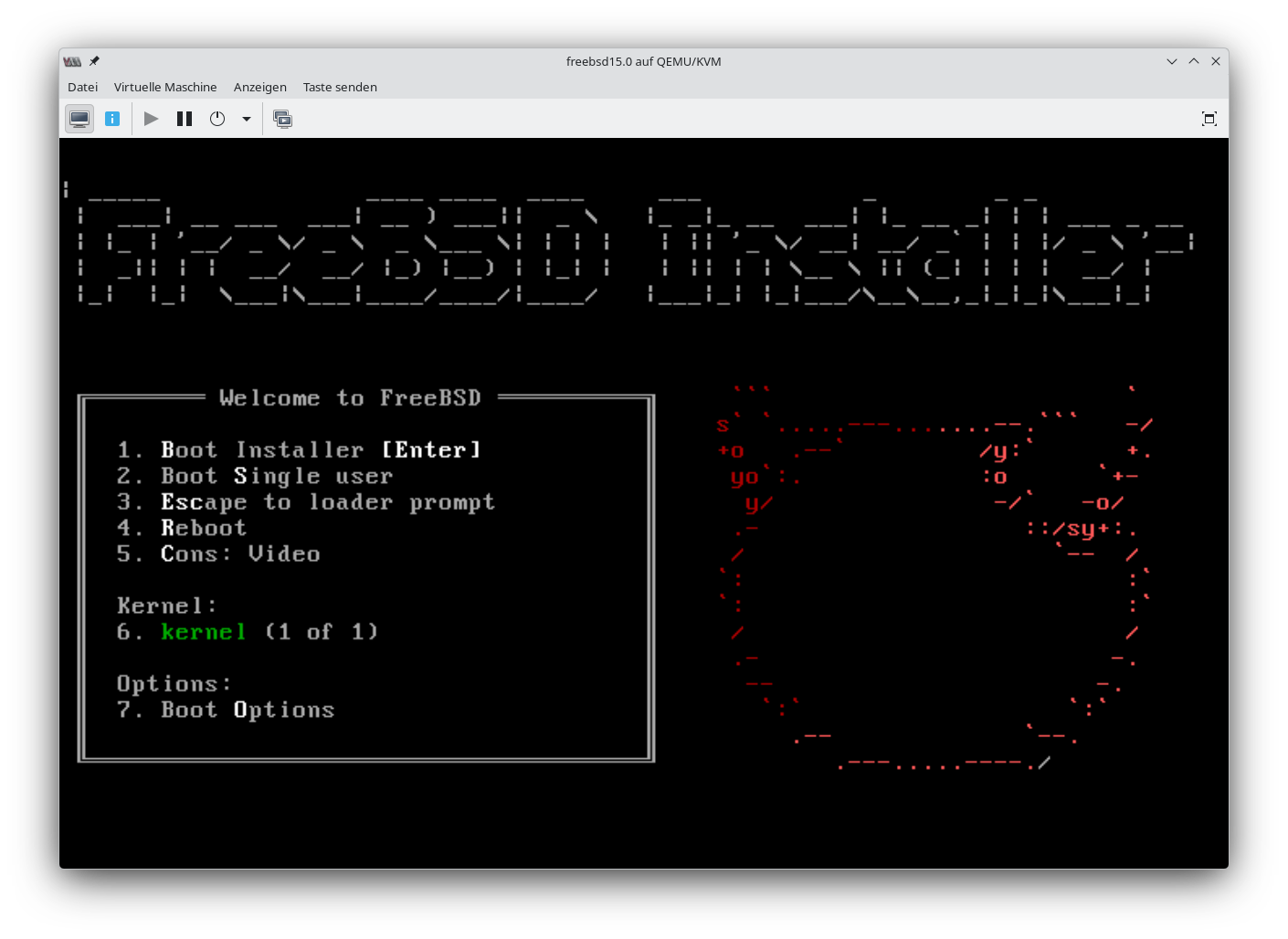
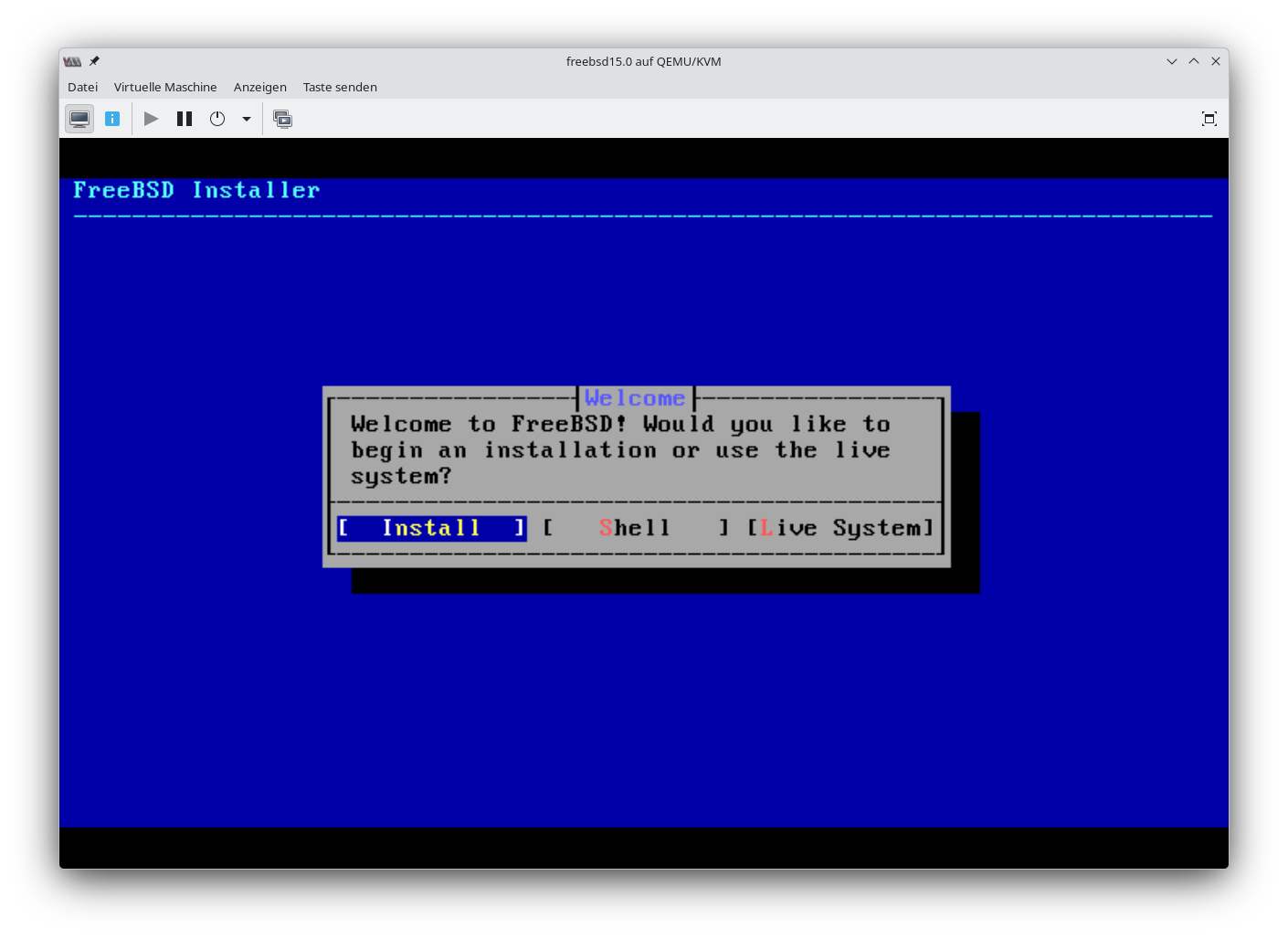
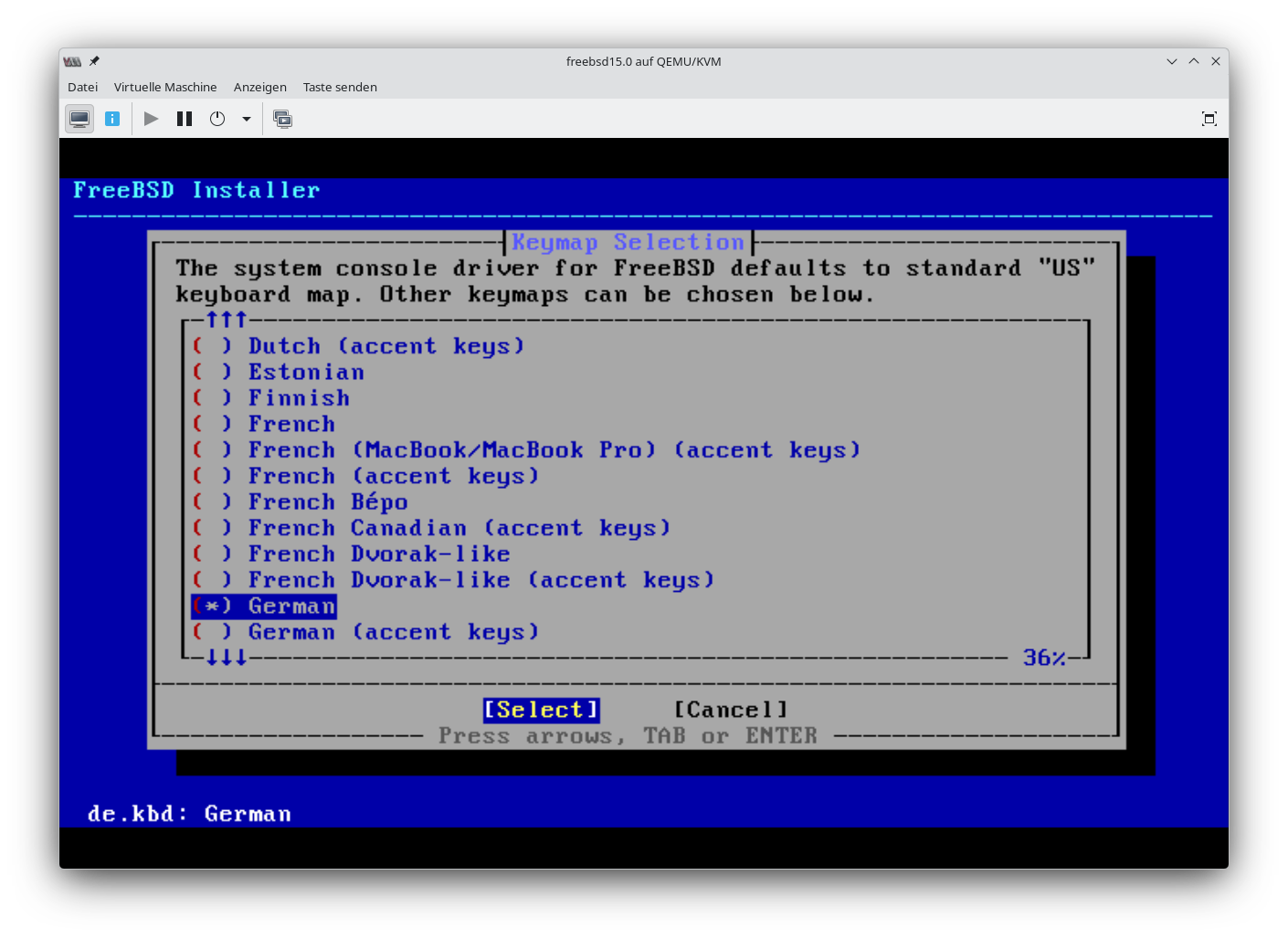
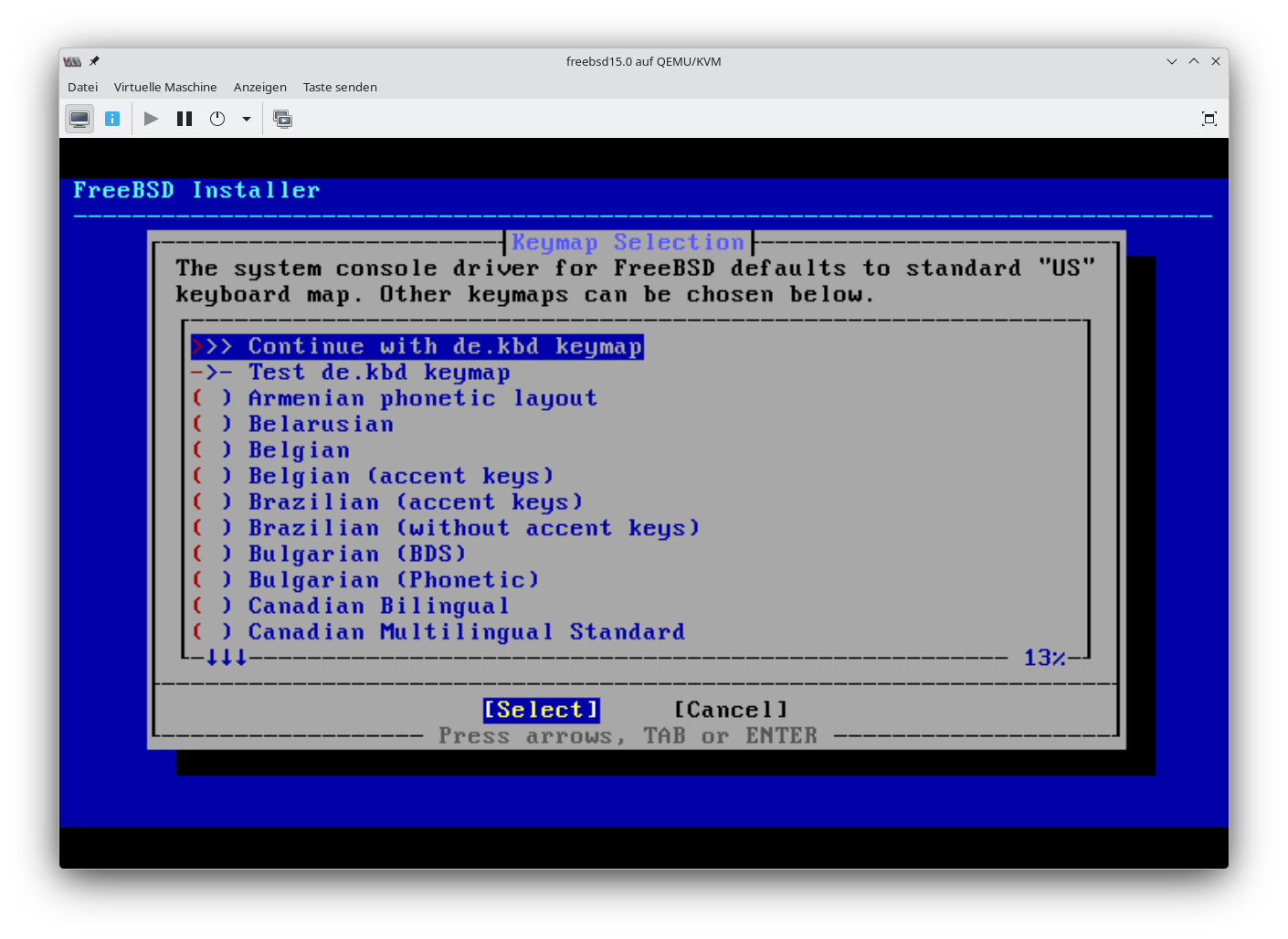
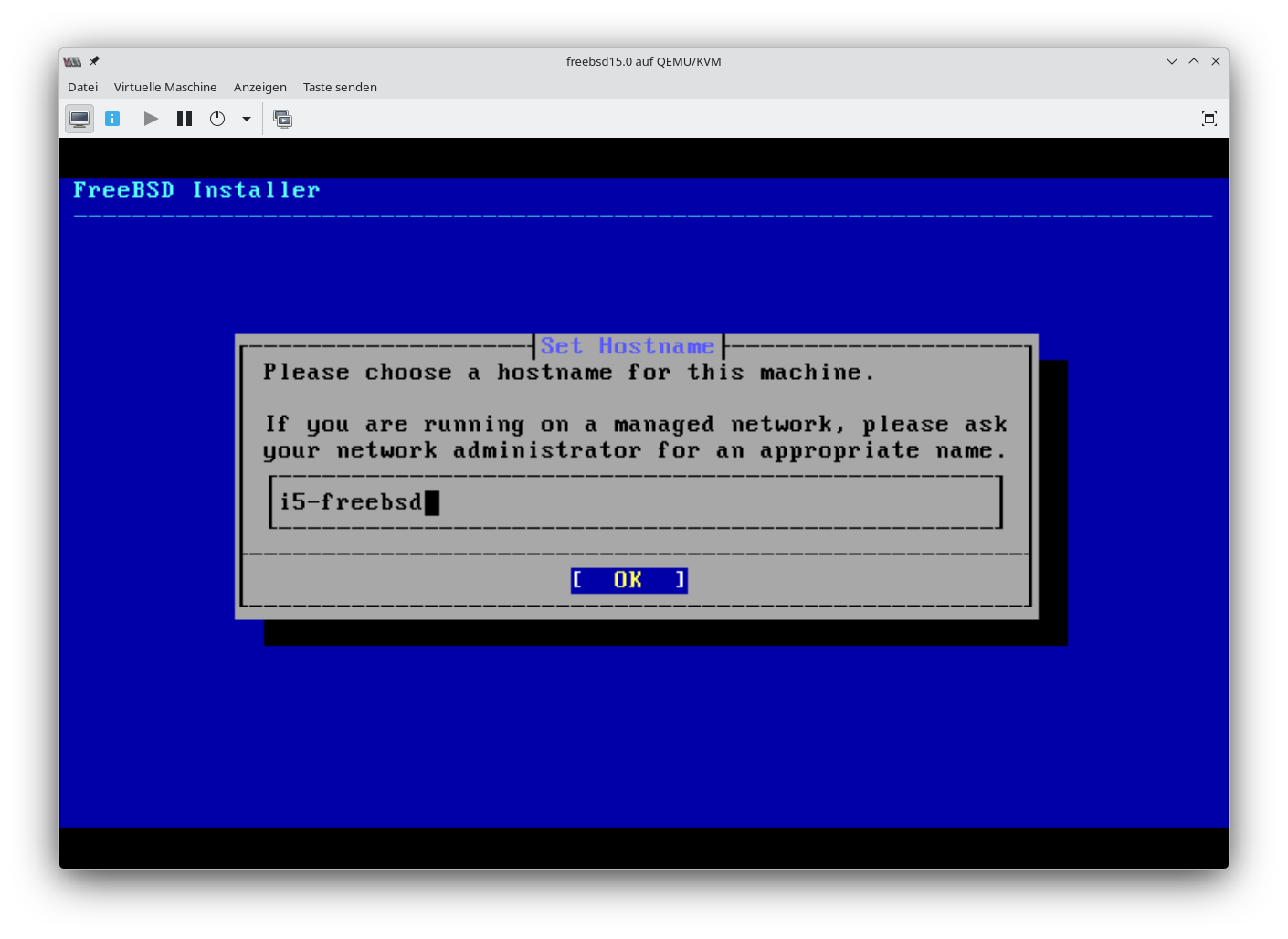
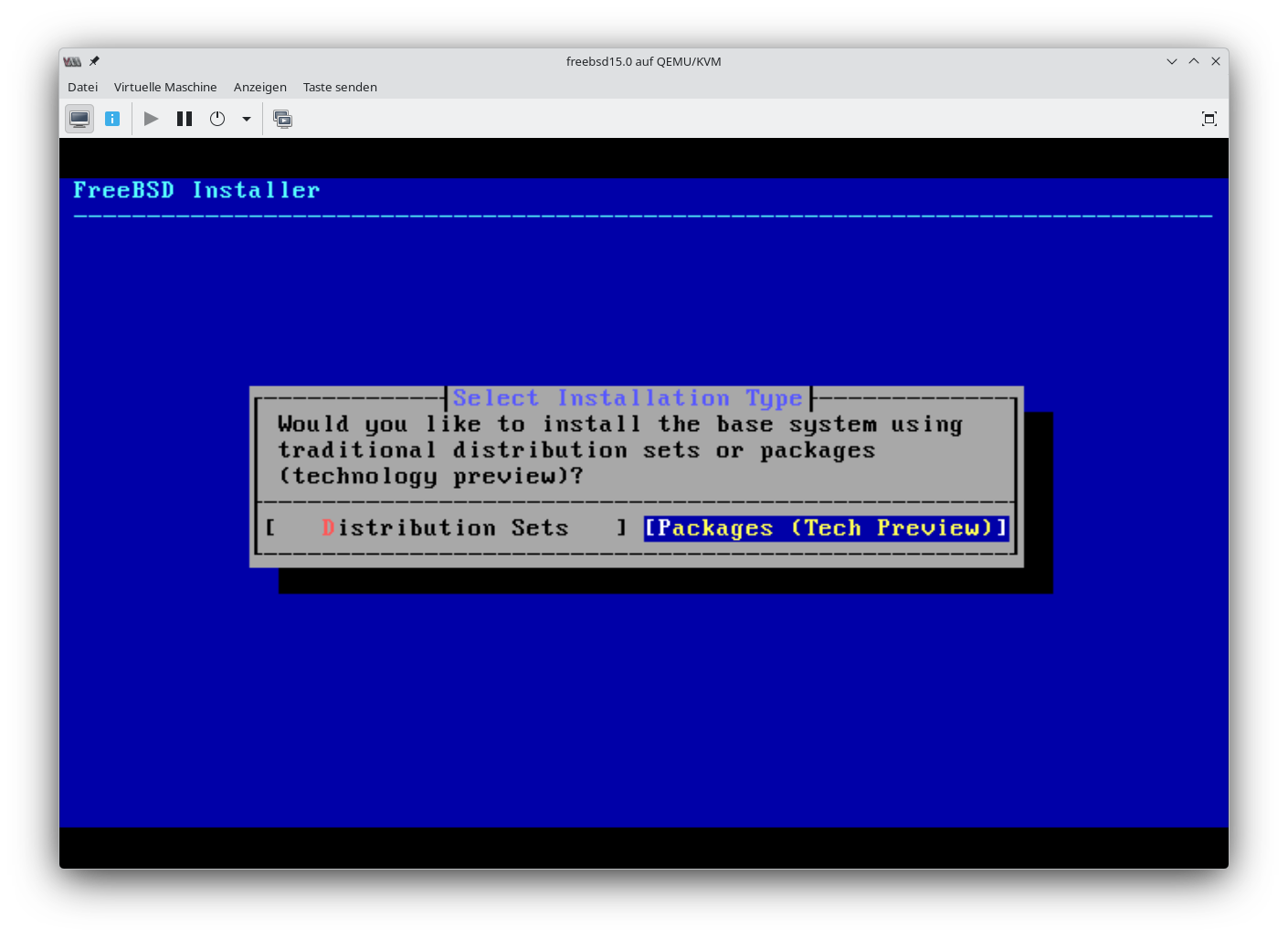
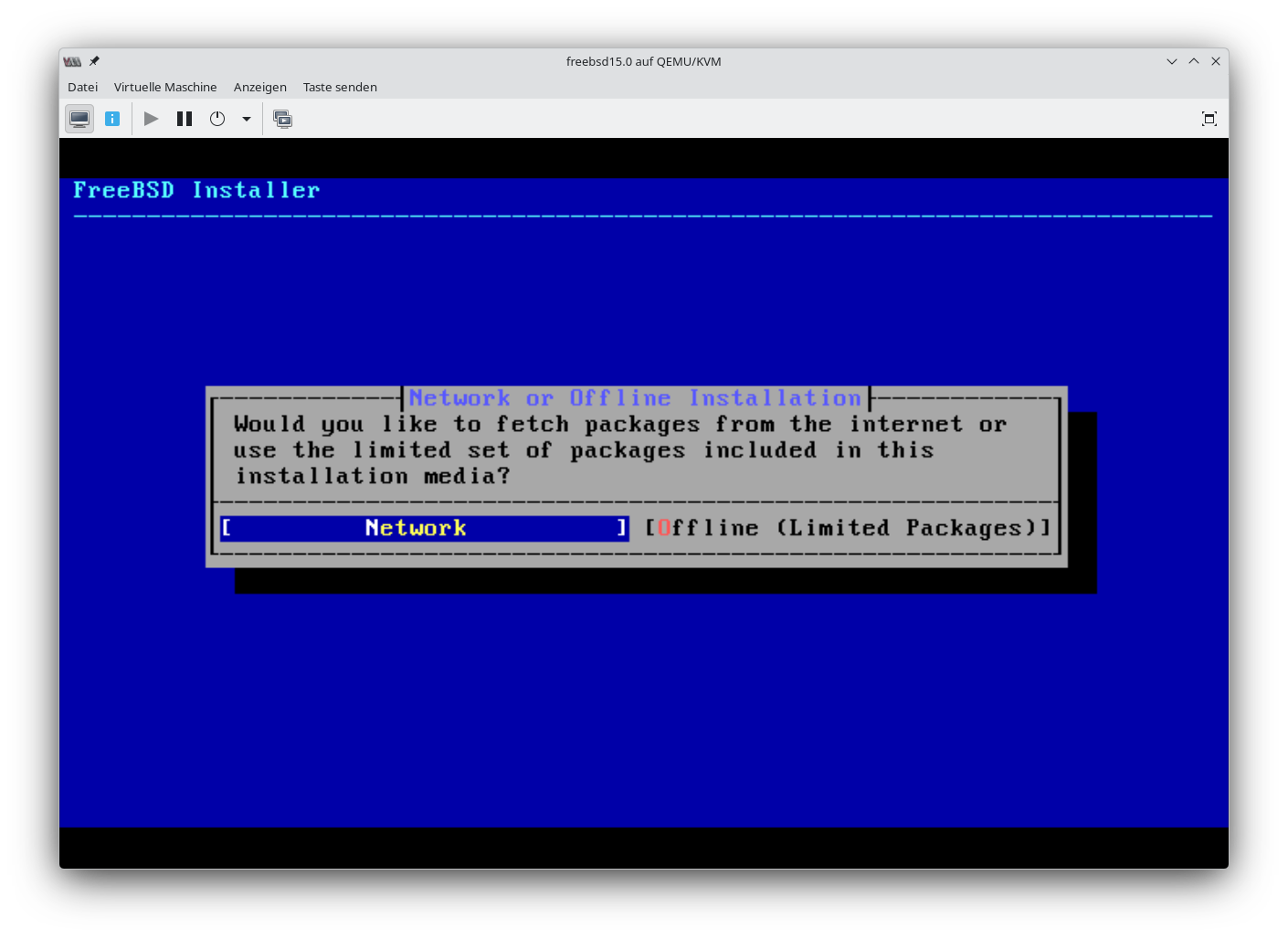
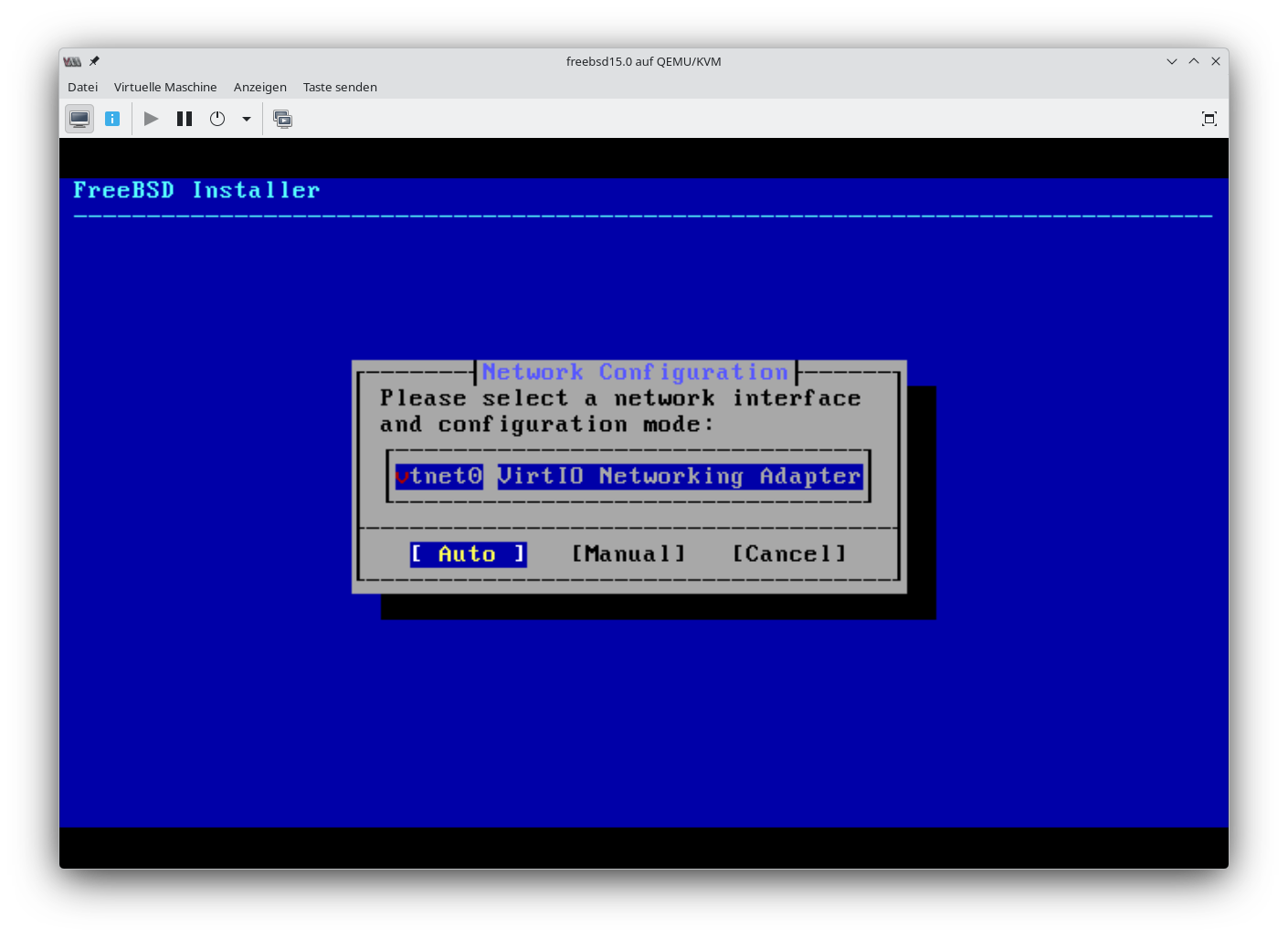
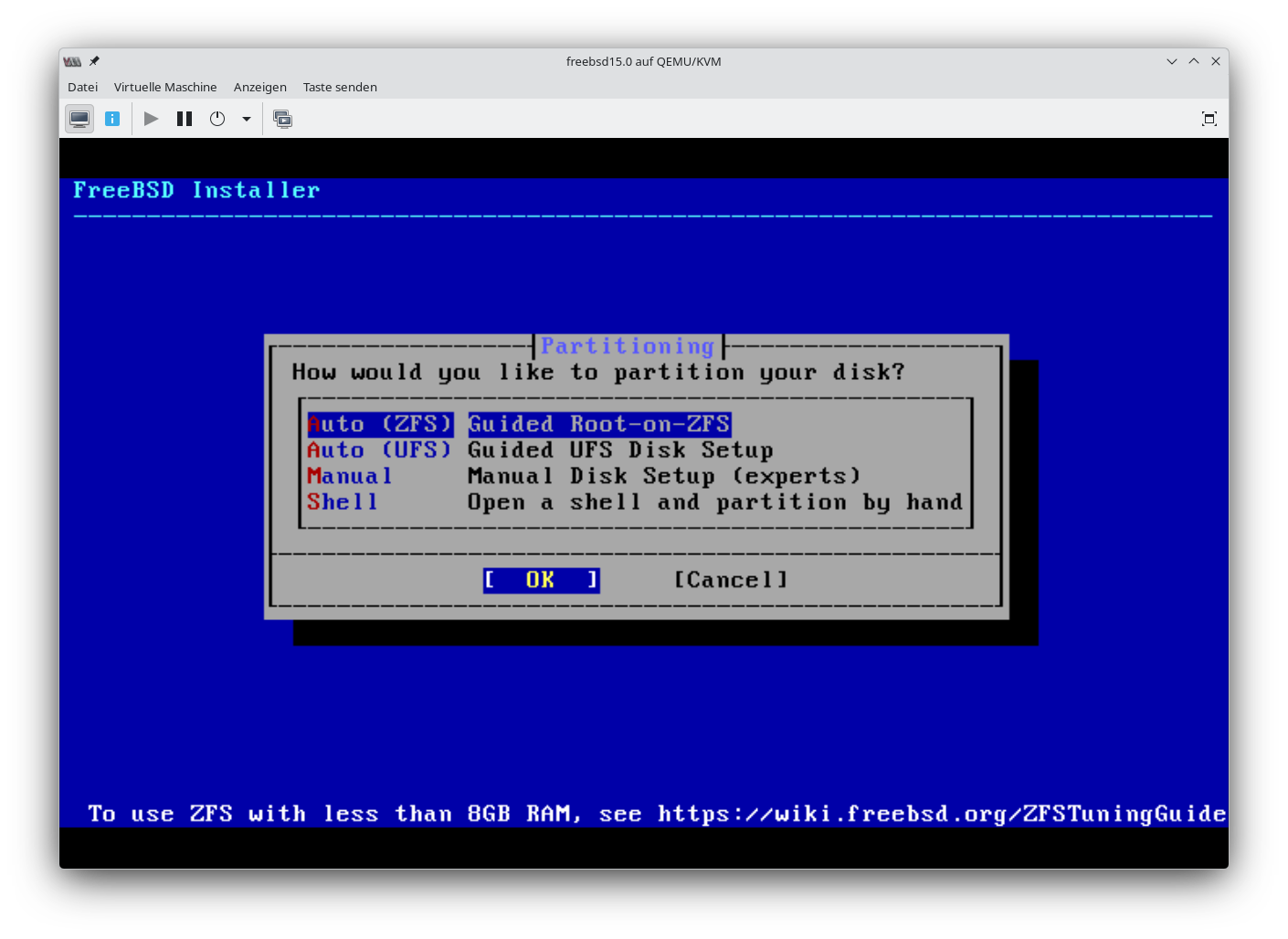
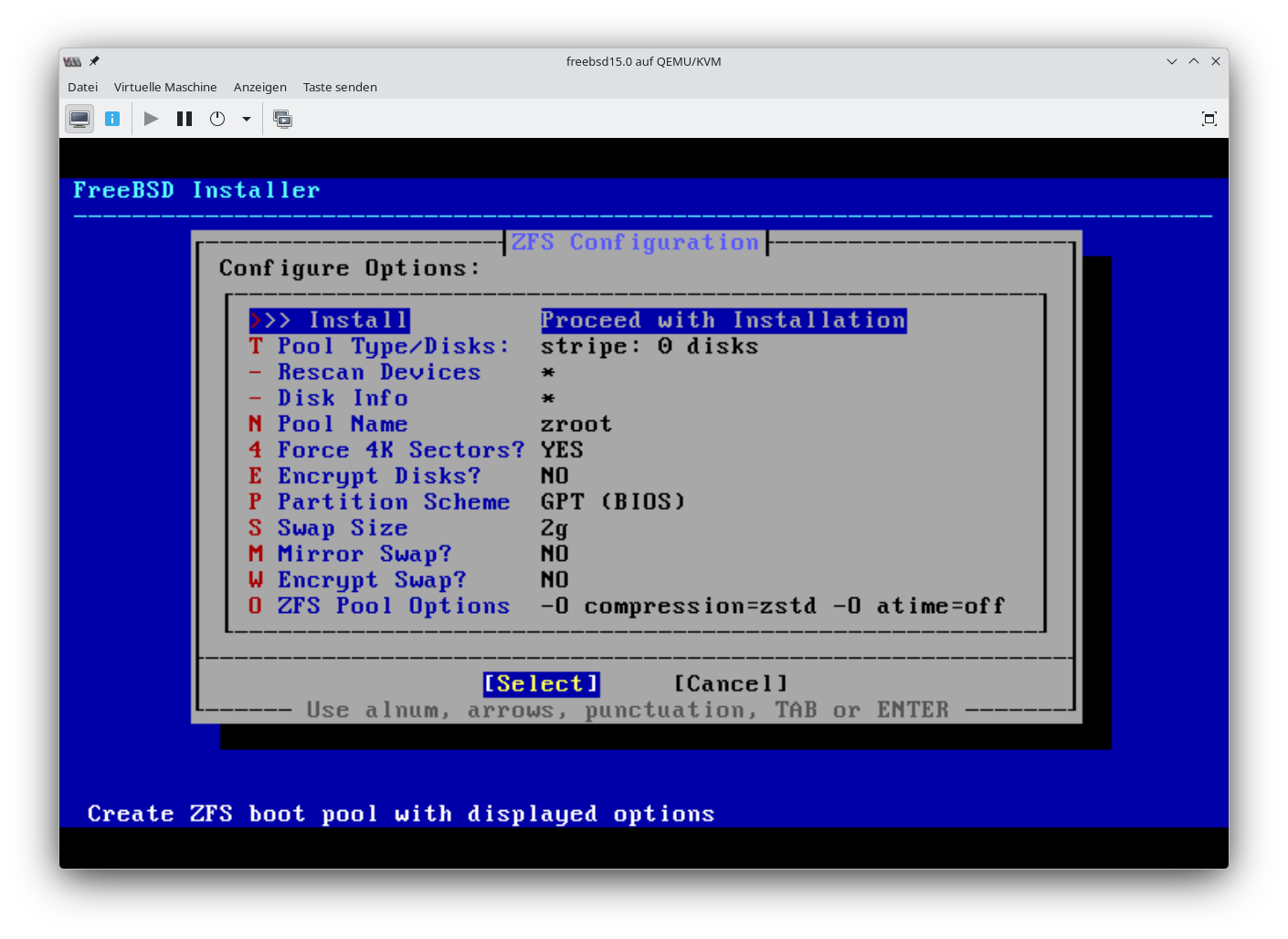
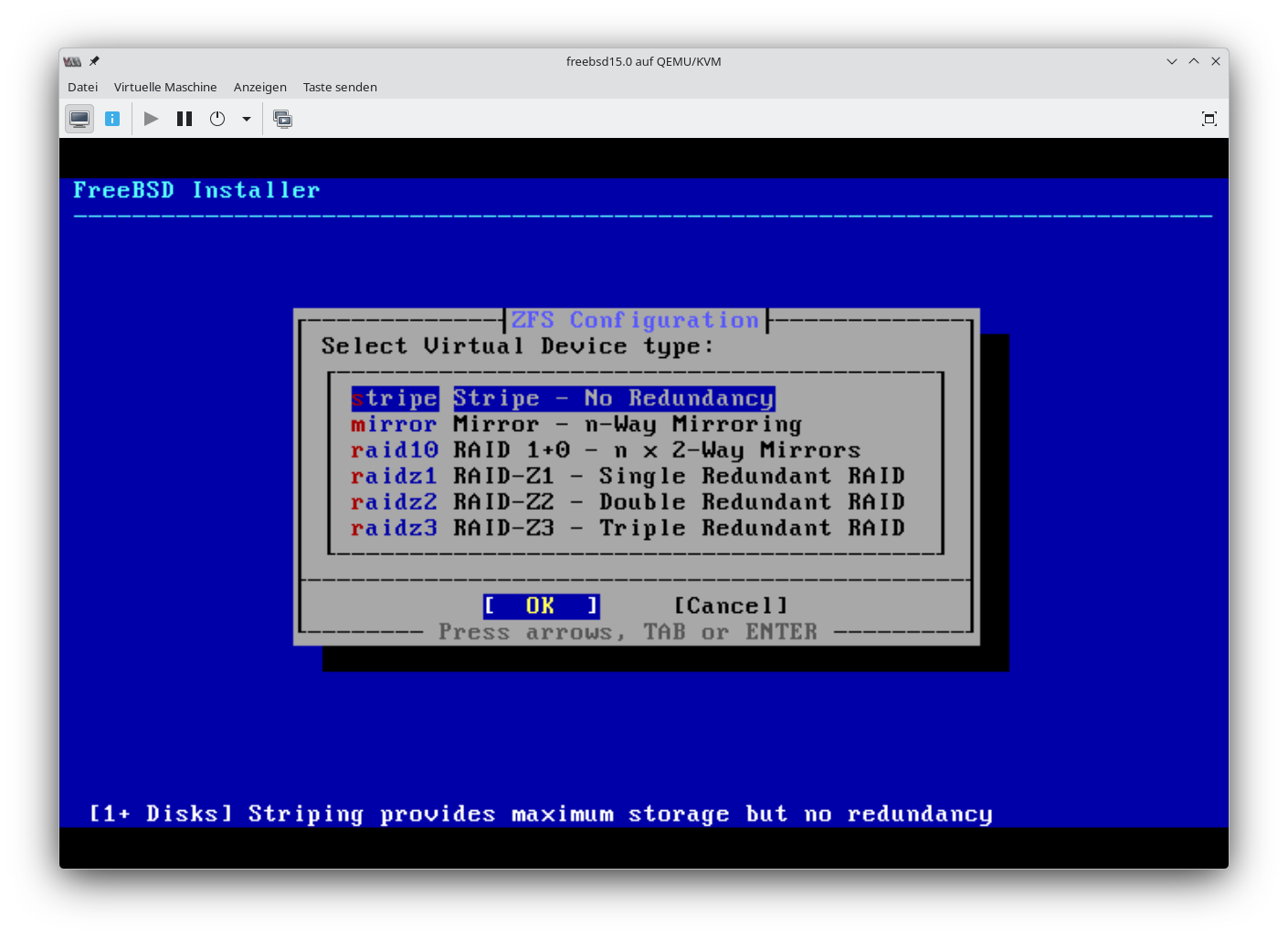
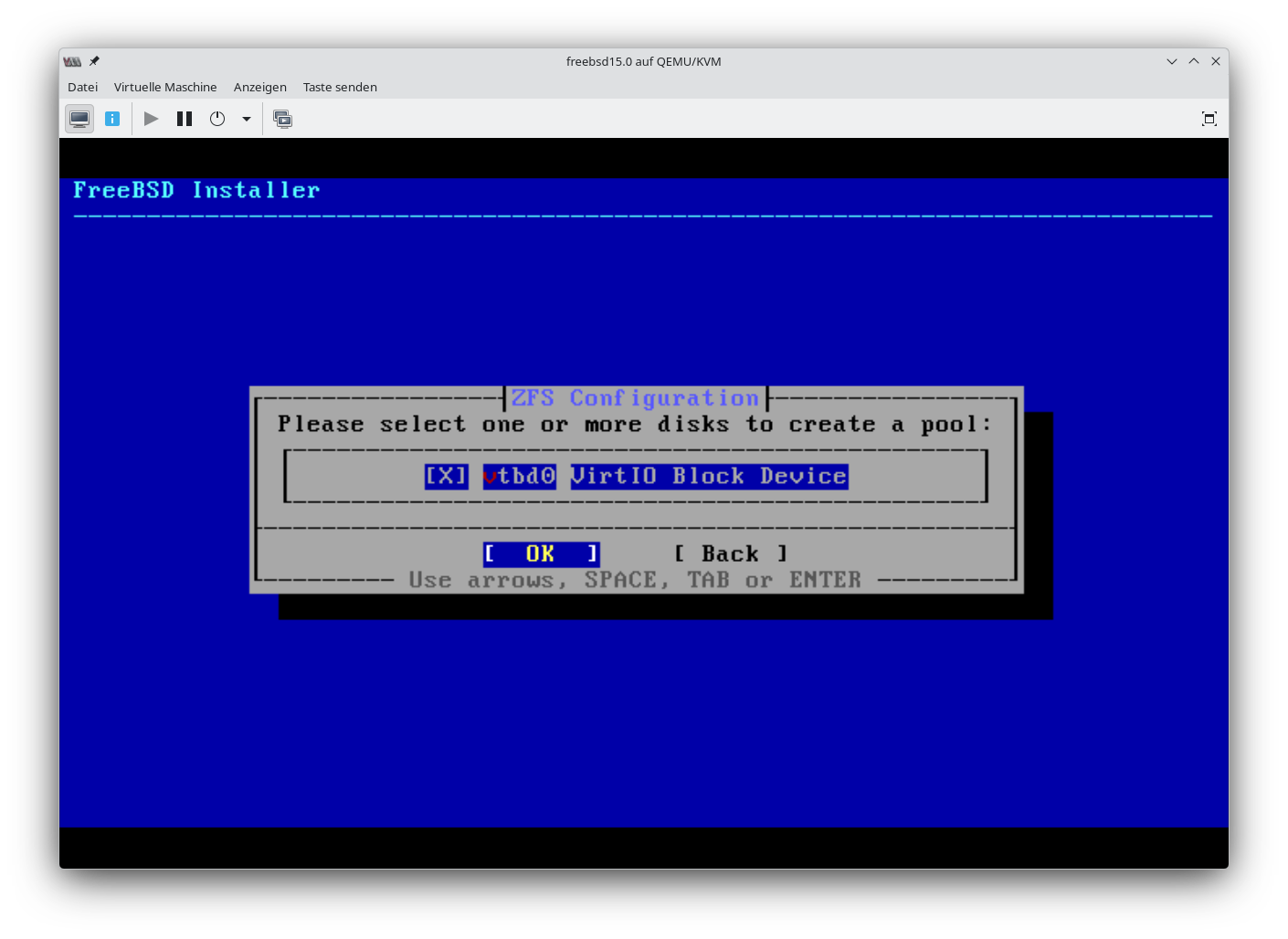
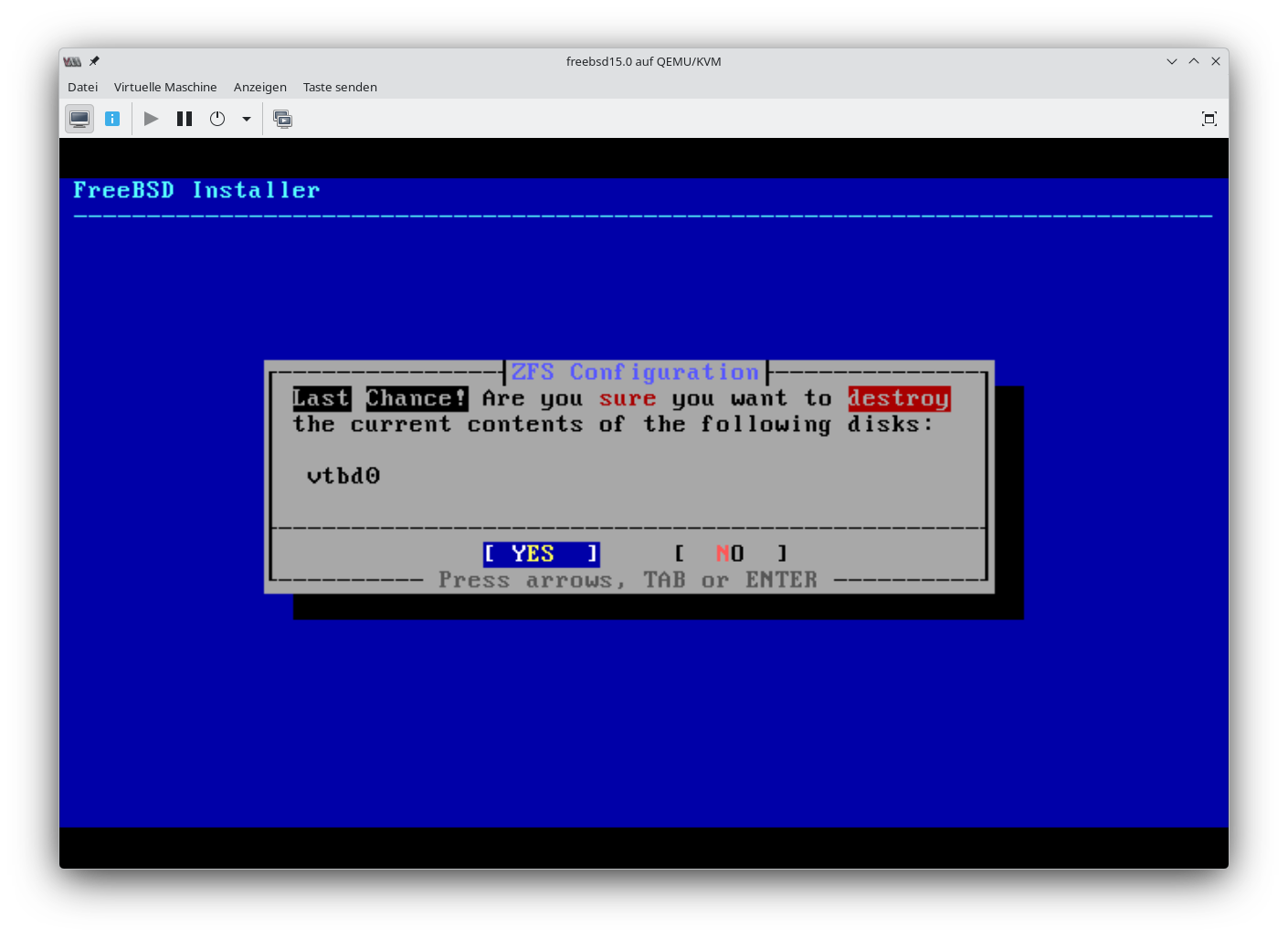
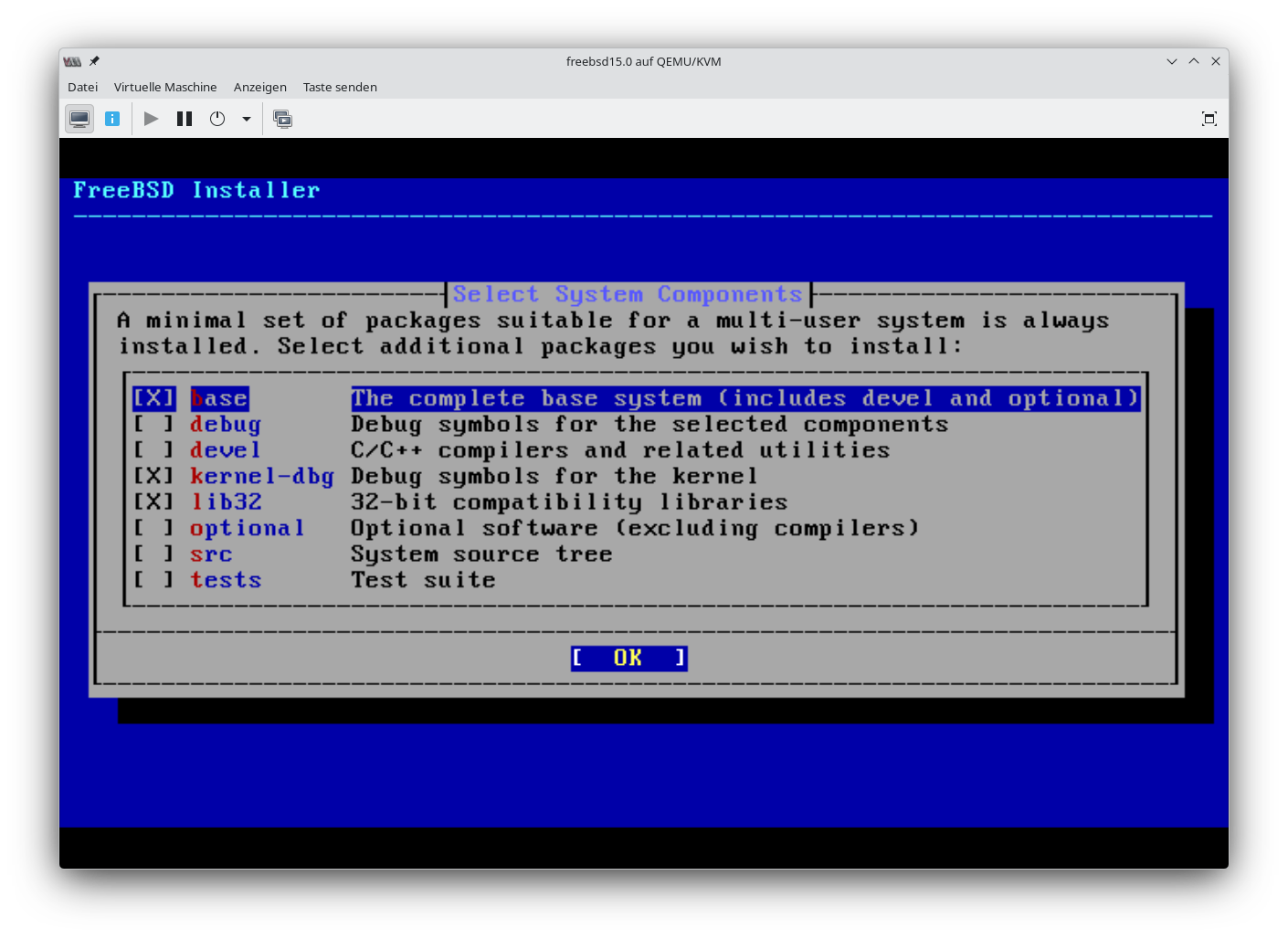
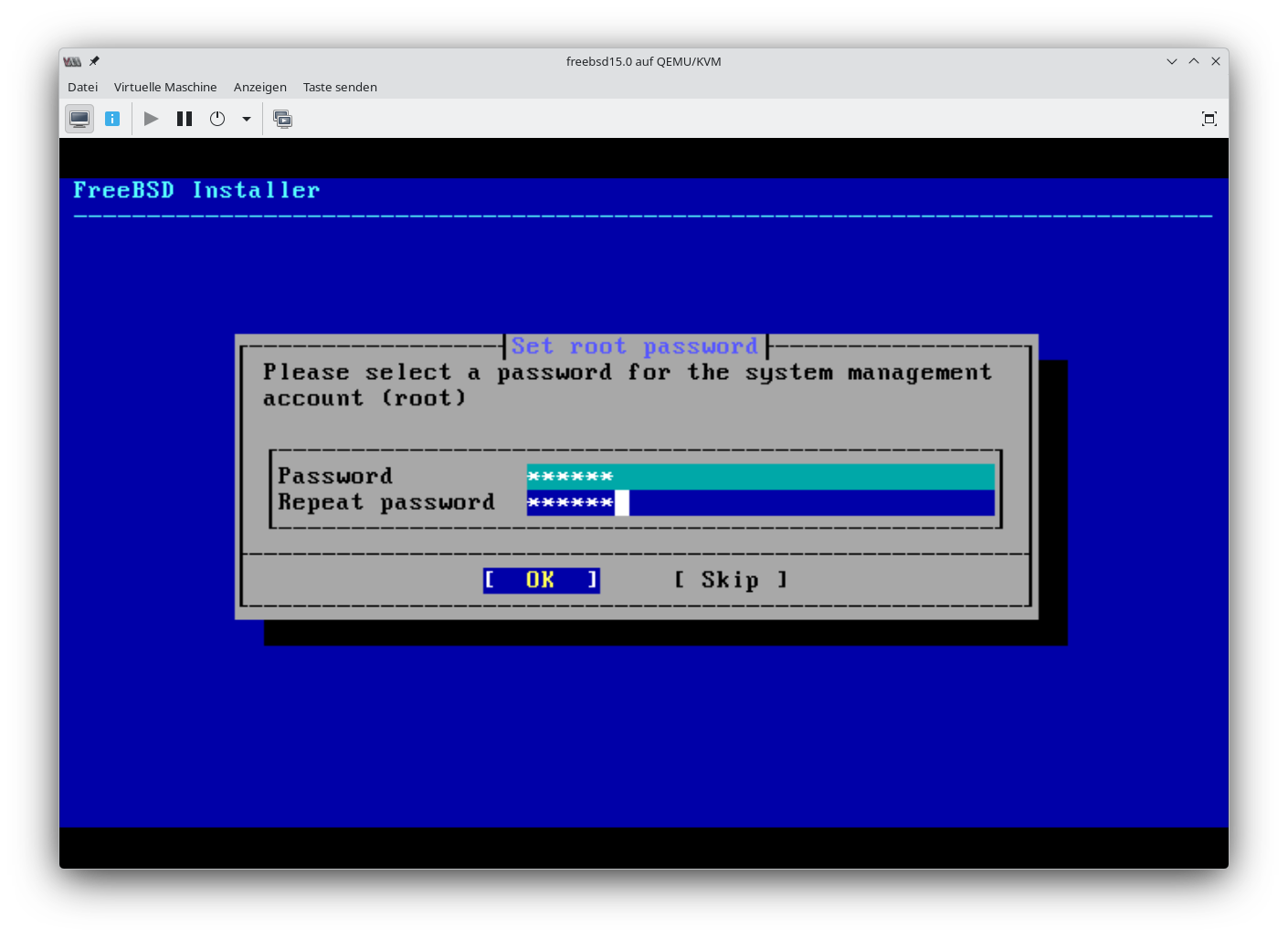
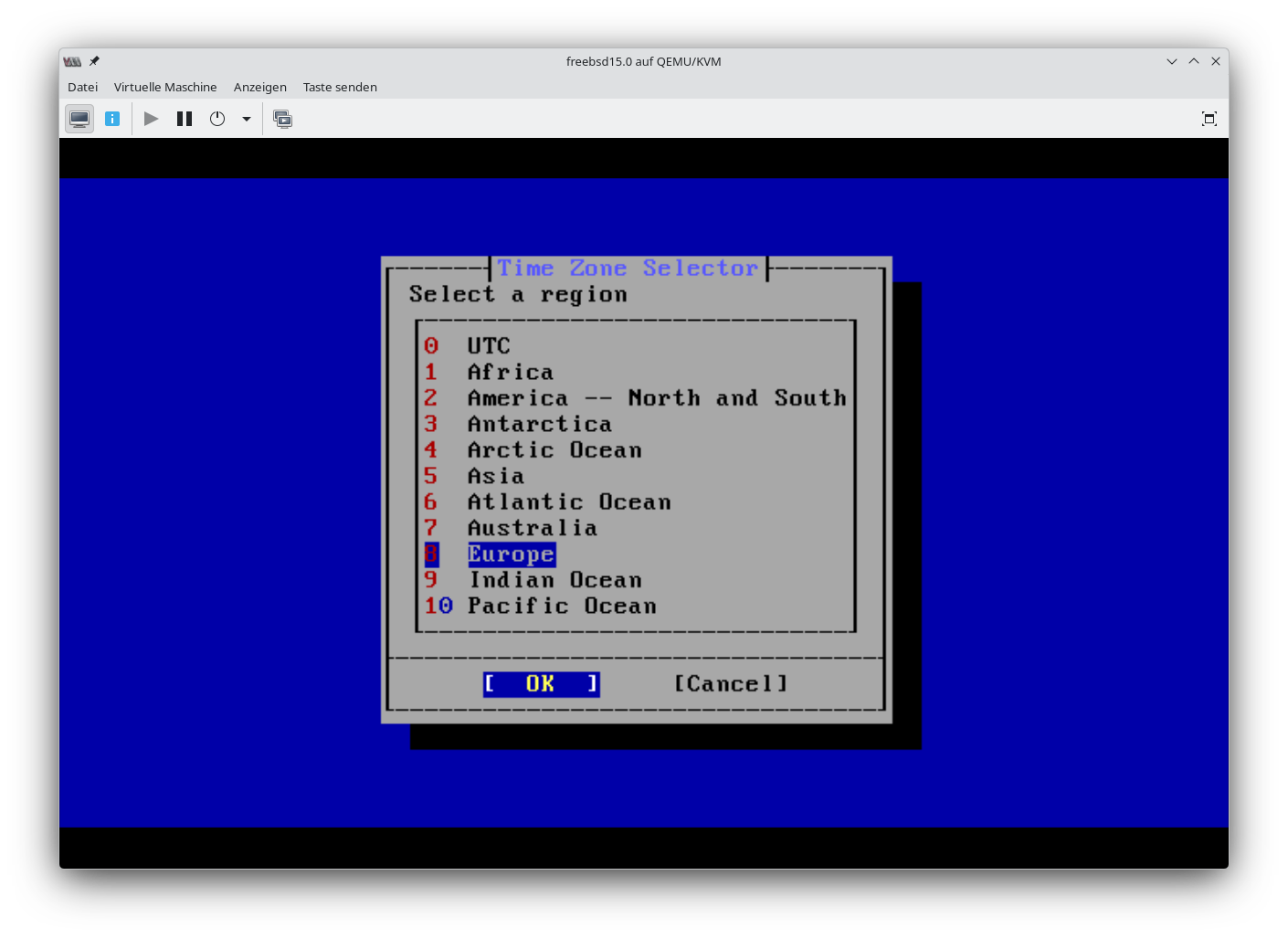
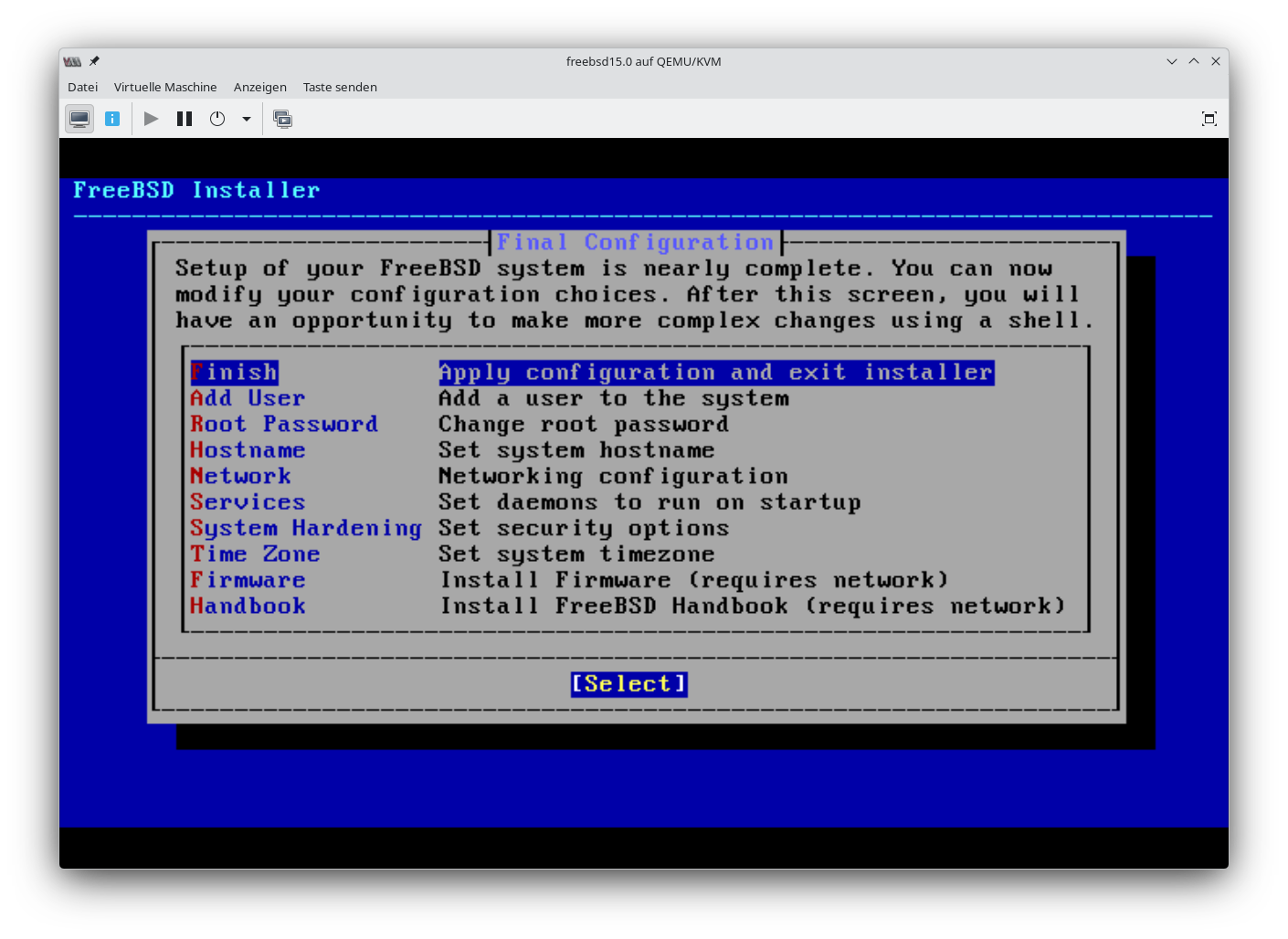
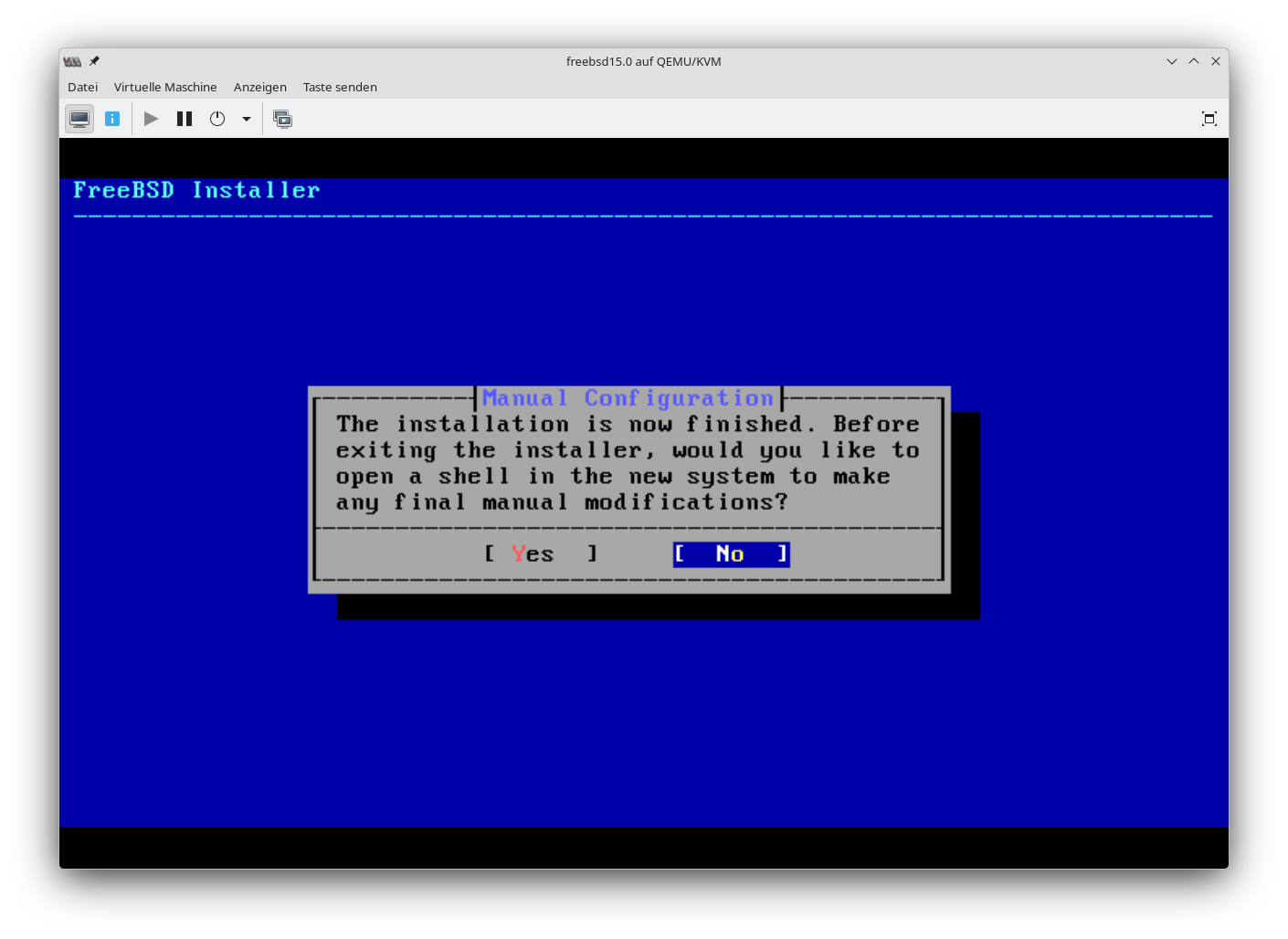
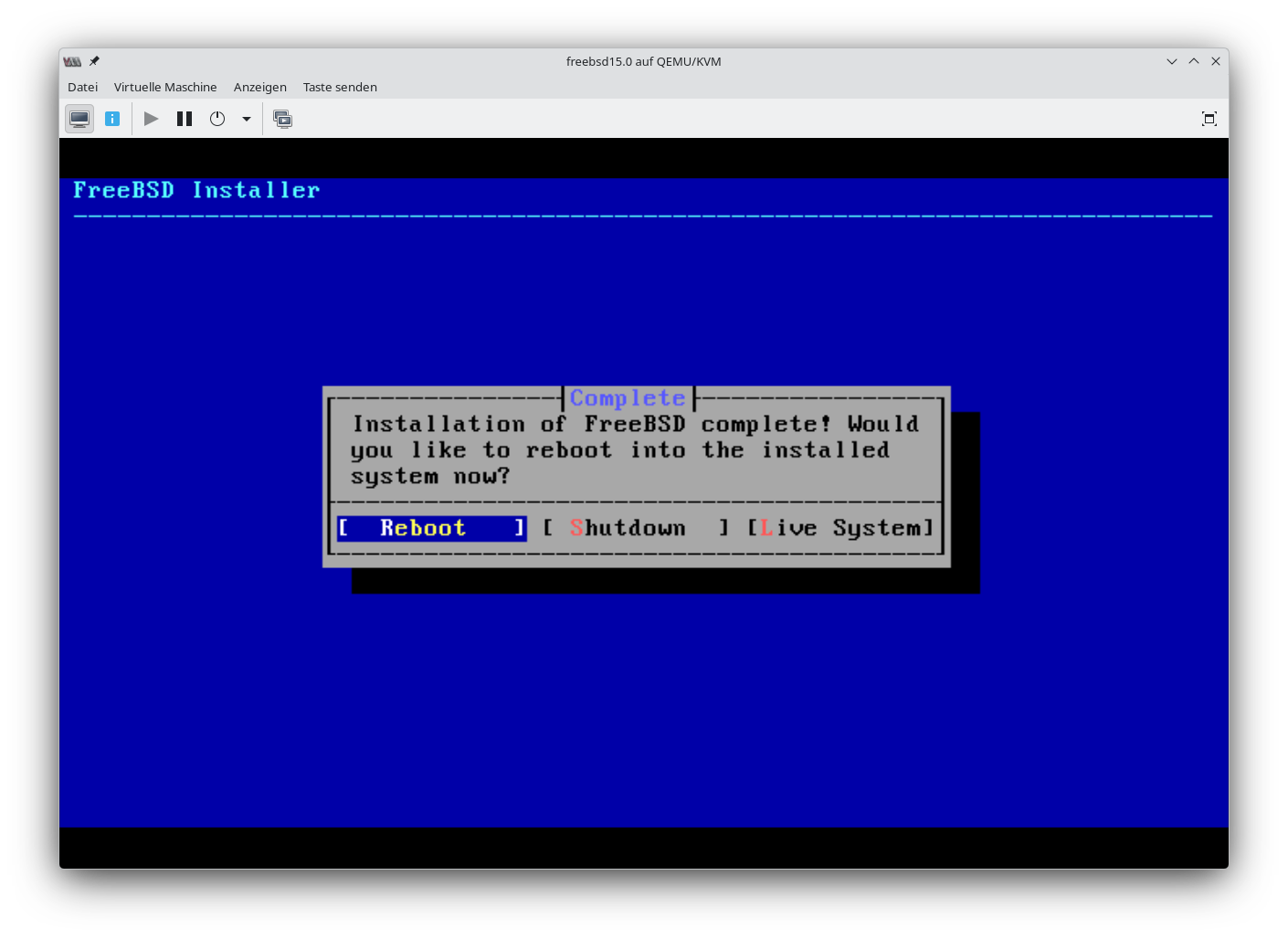
SSH-Key kopieren und SSHD_CONFIG anpassen
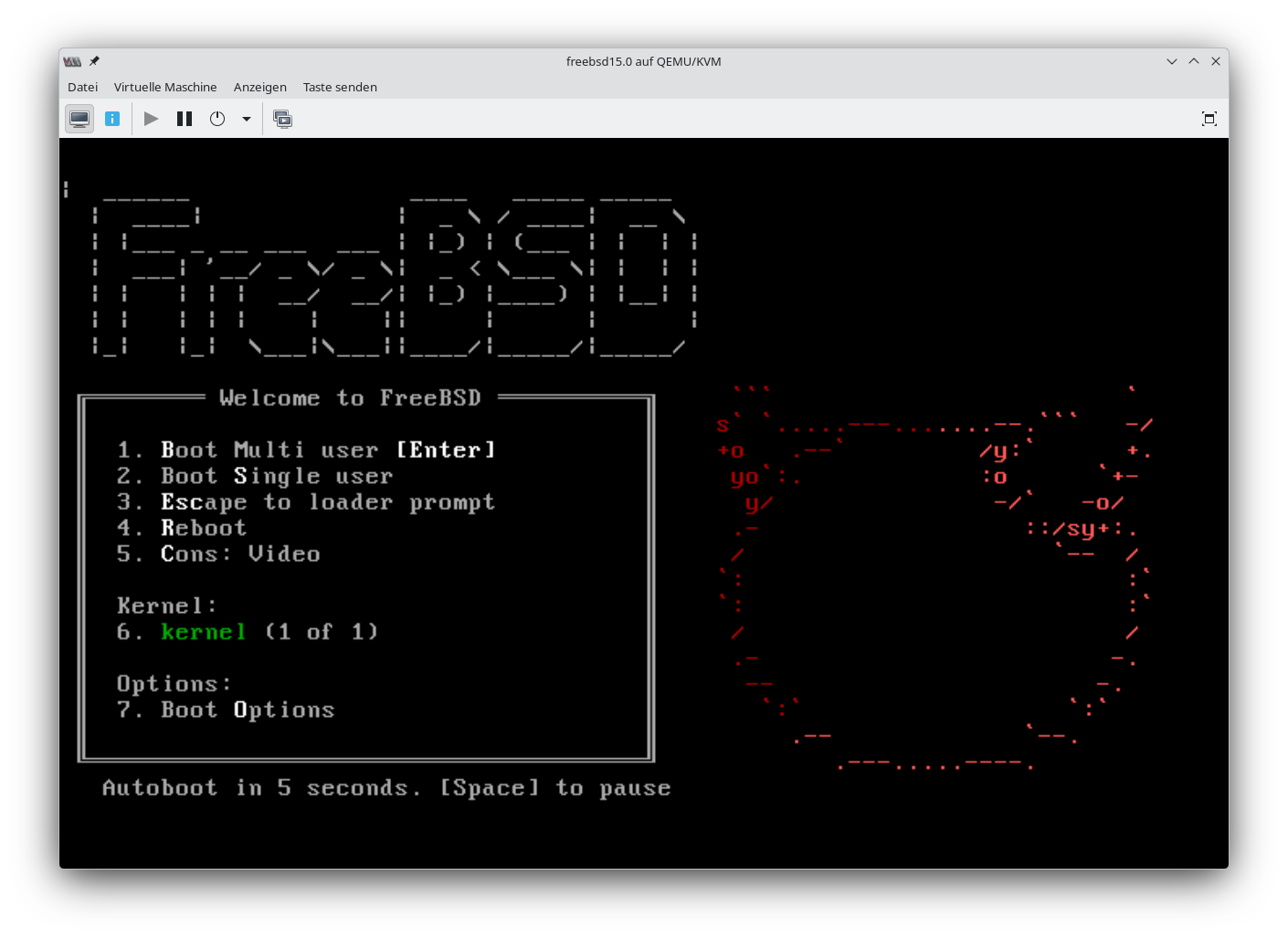
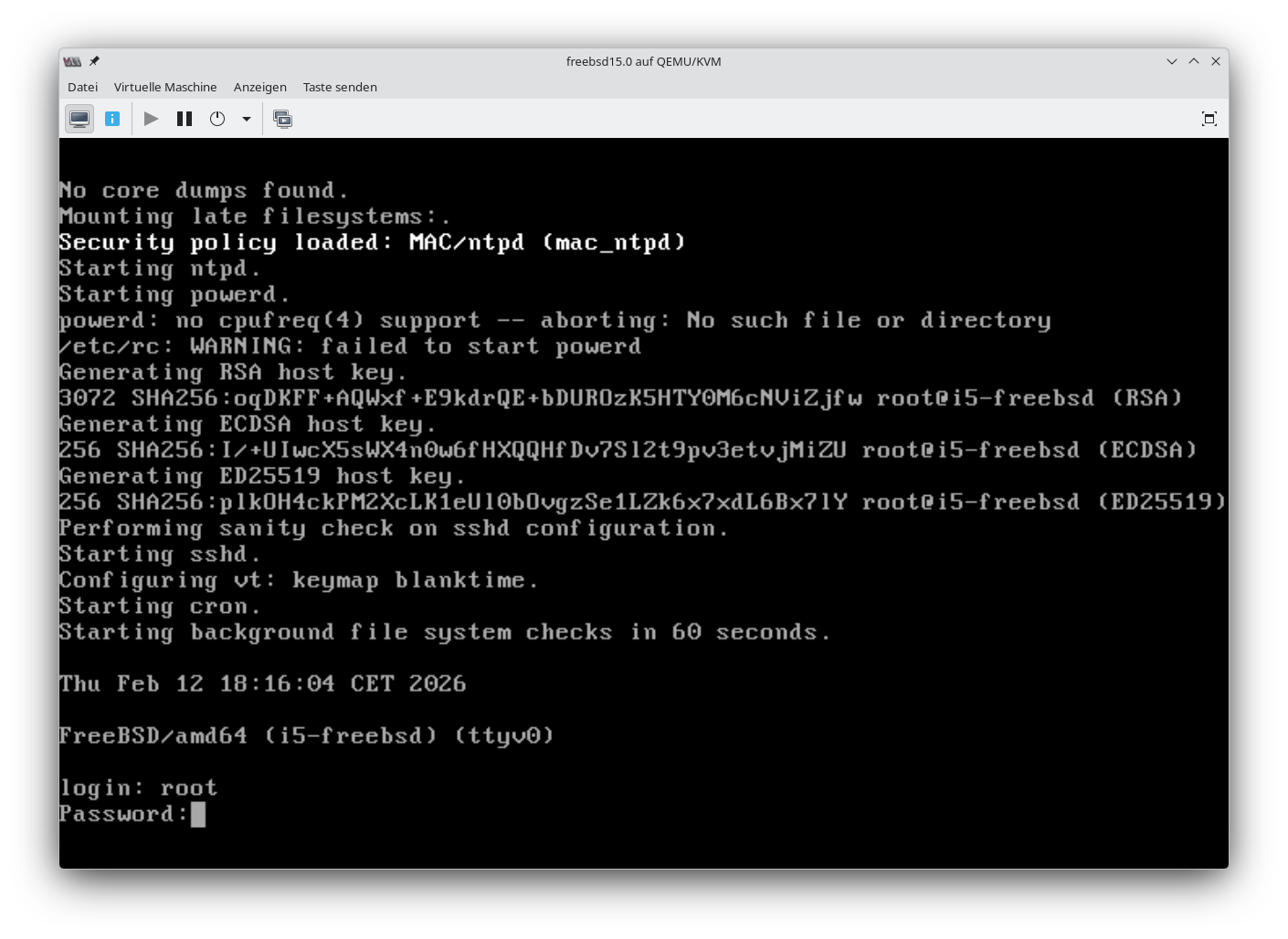
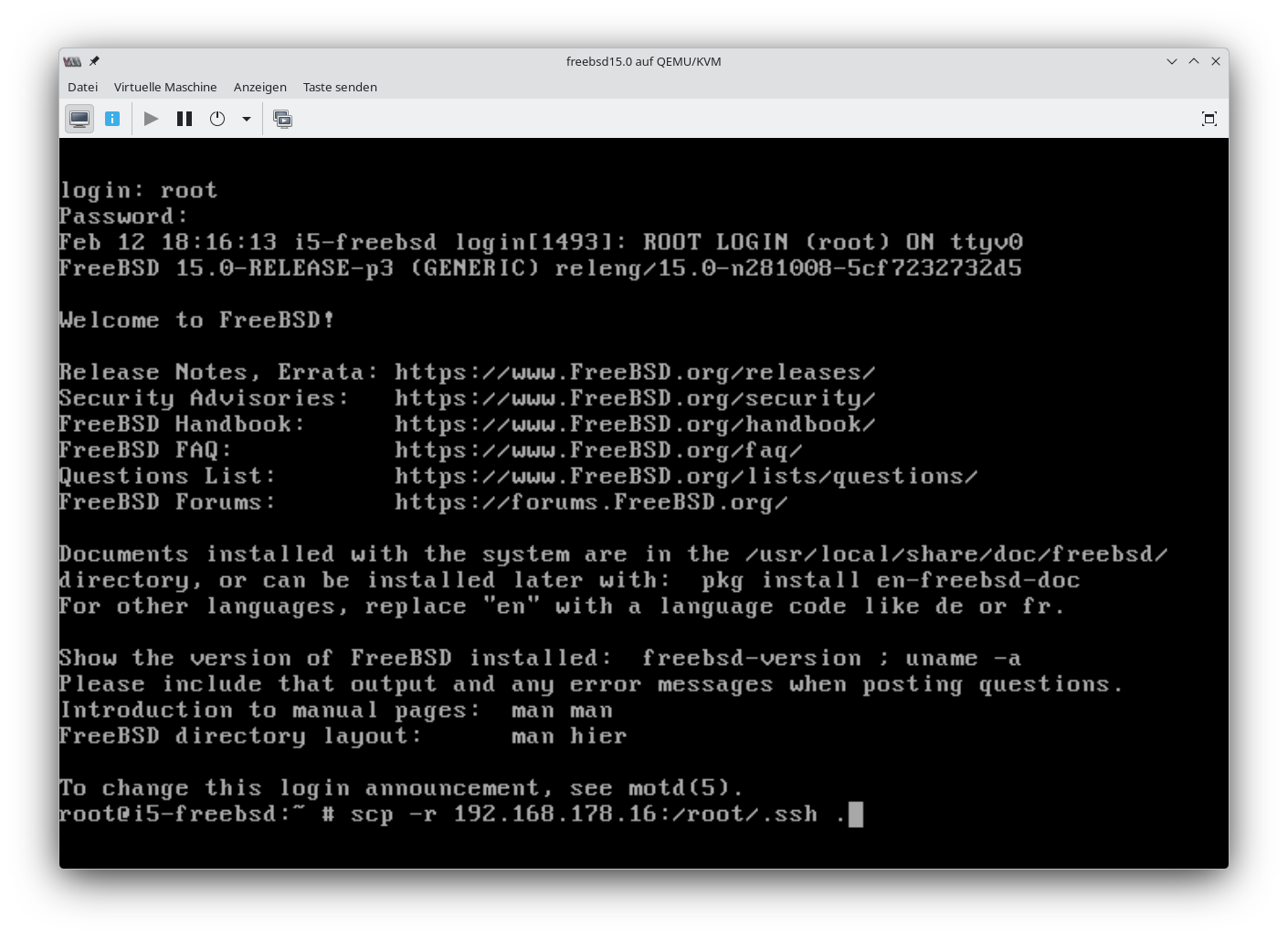
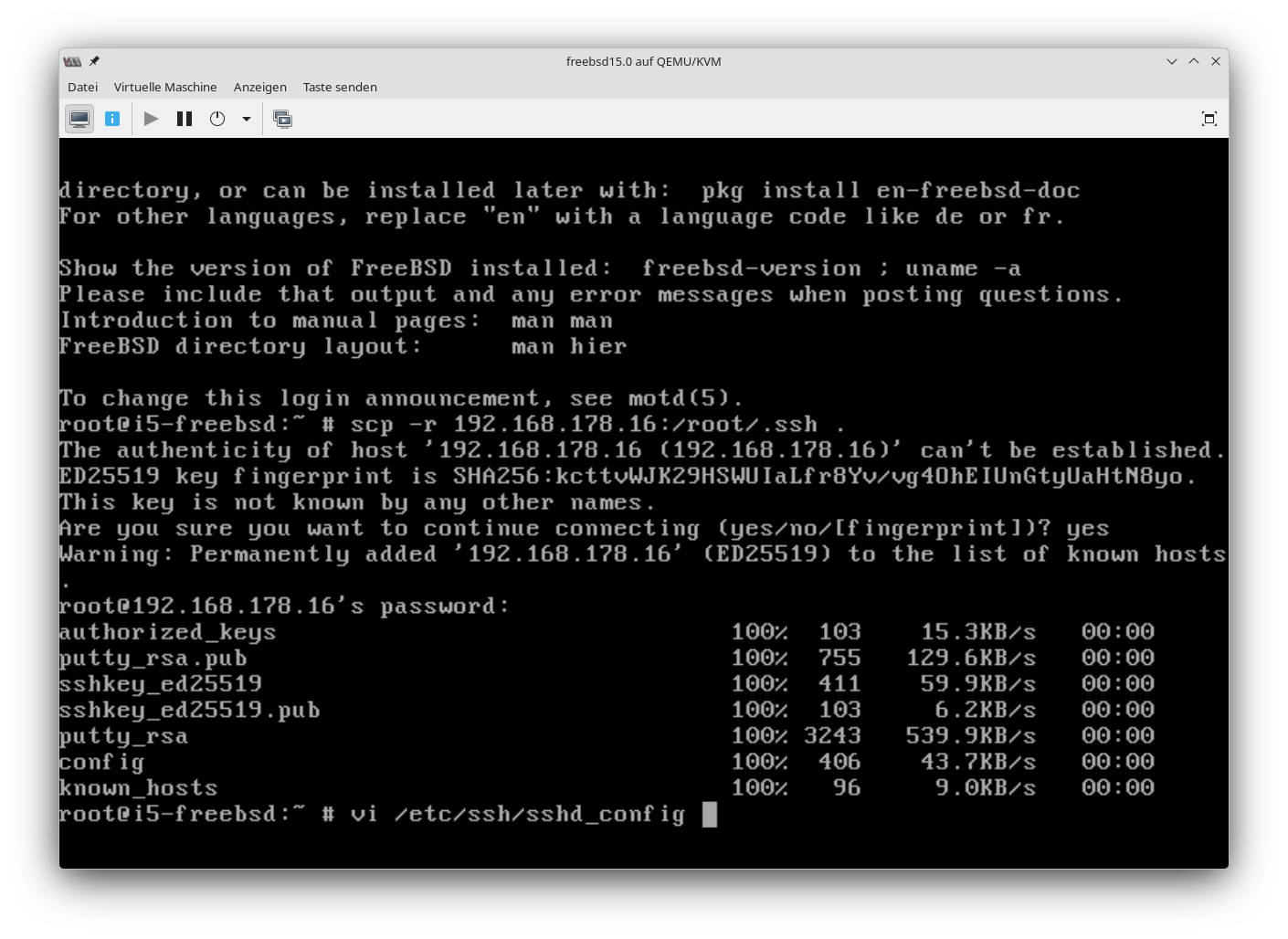
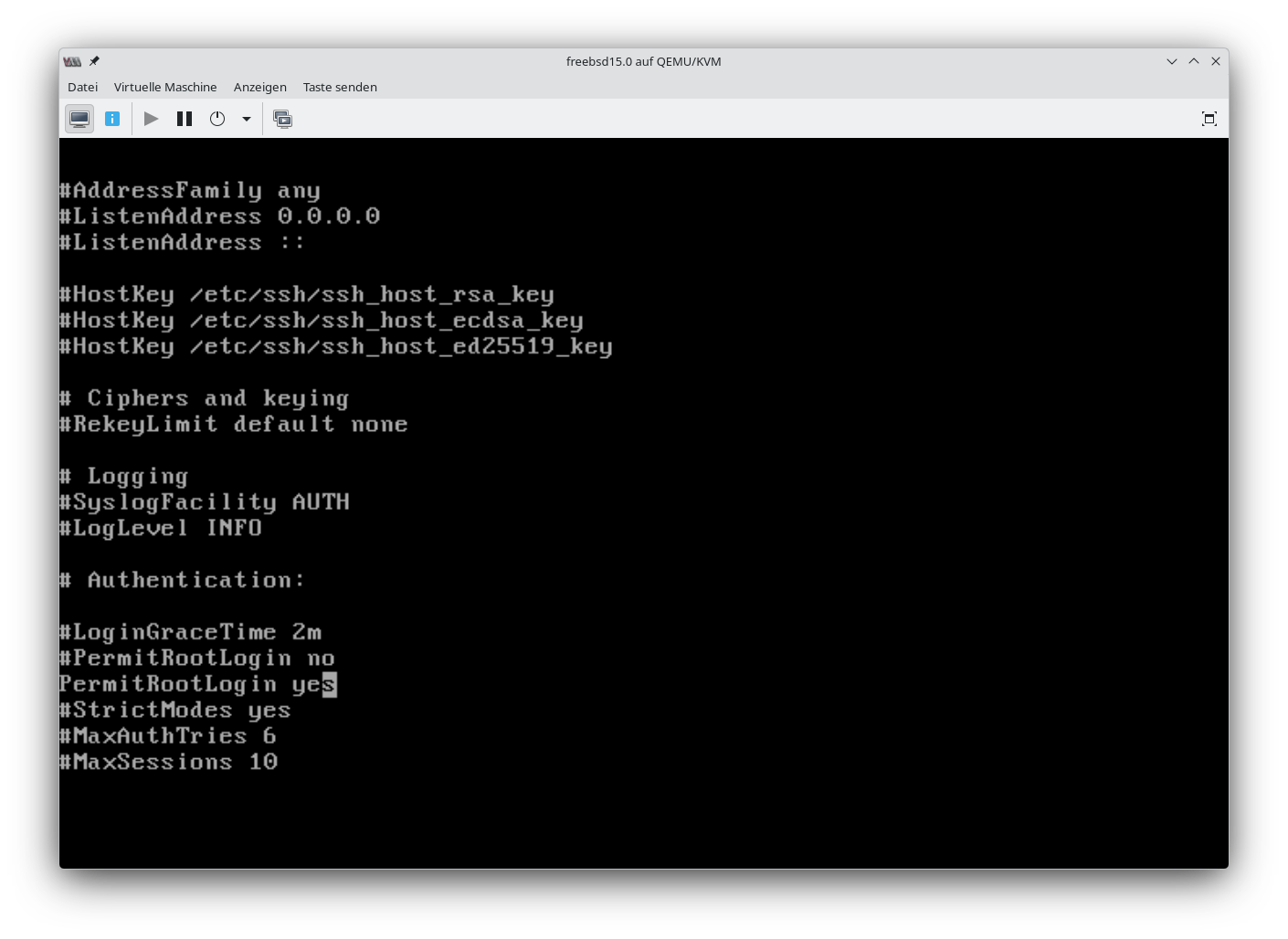
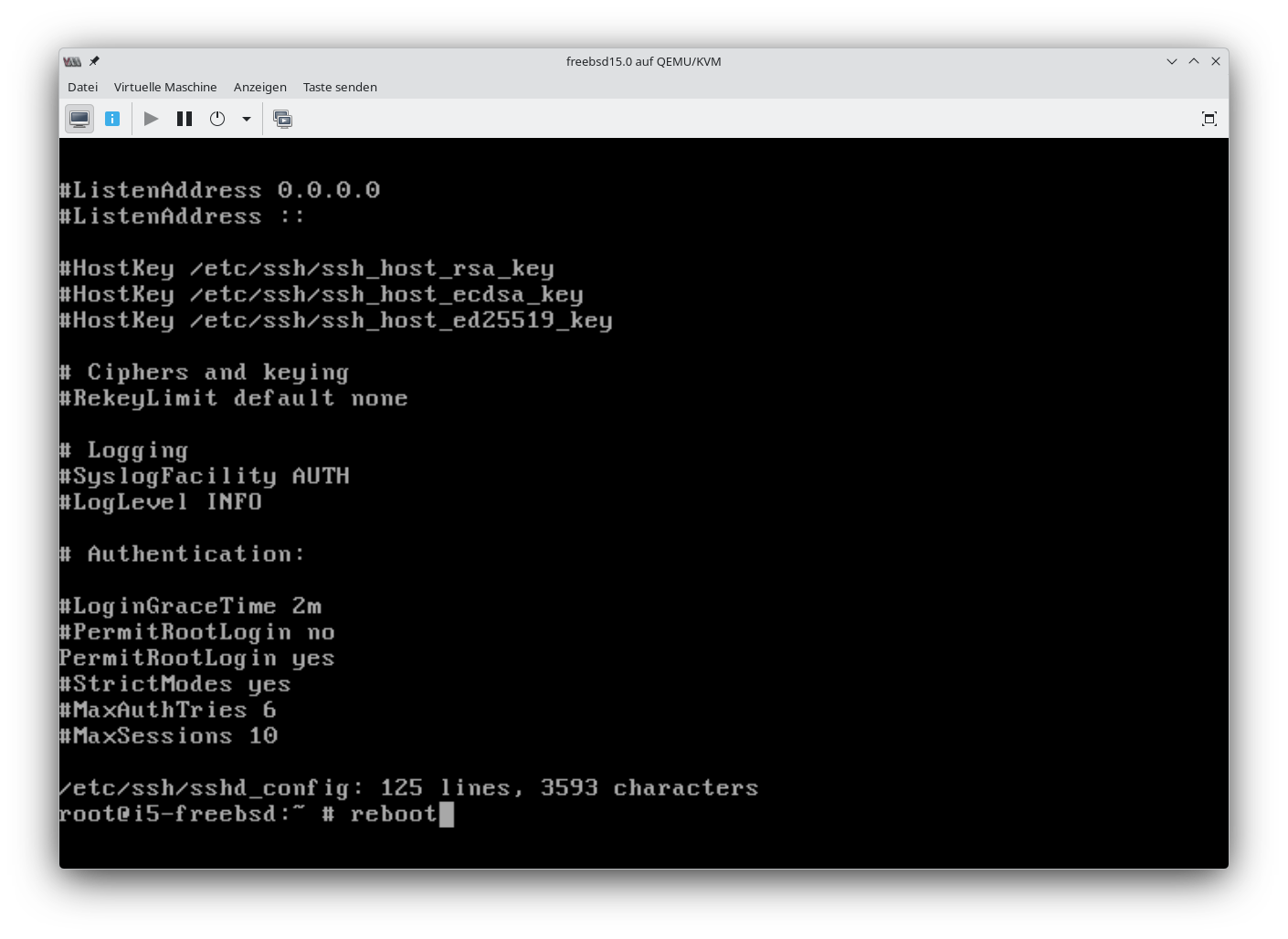
Danach reboot.
Erste Anpassungen
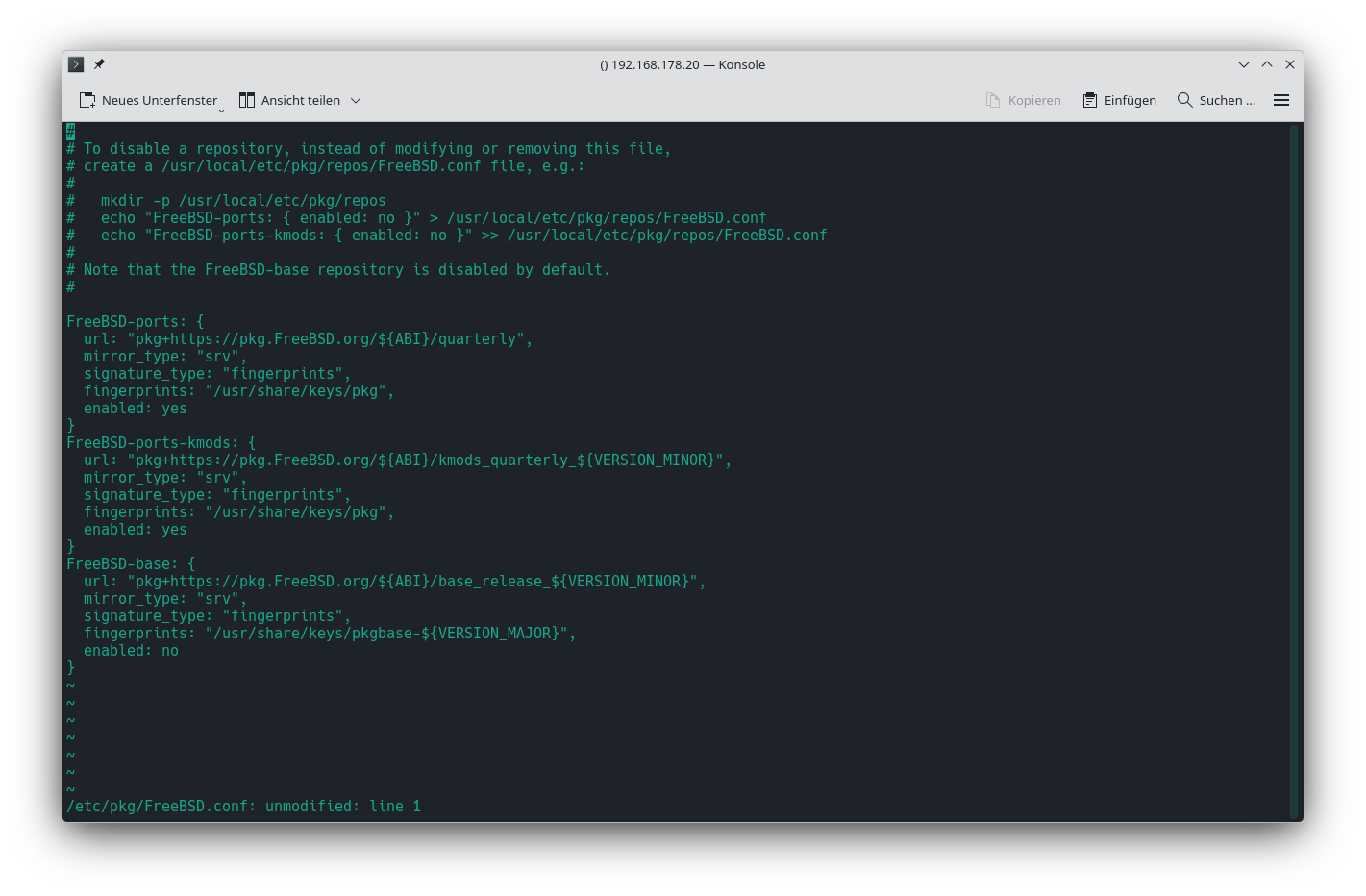
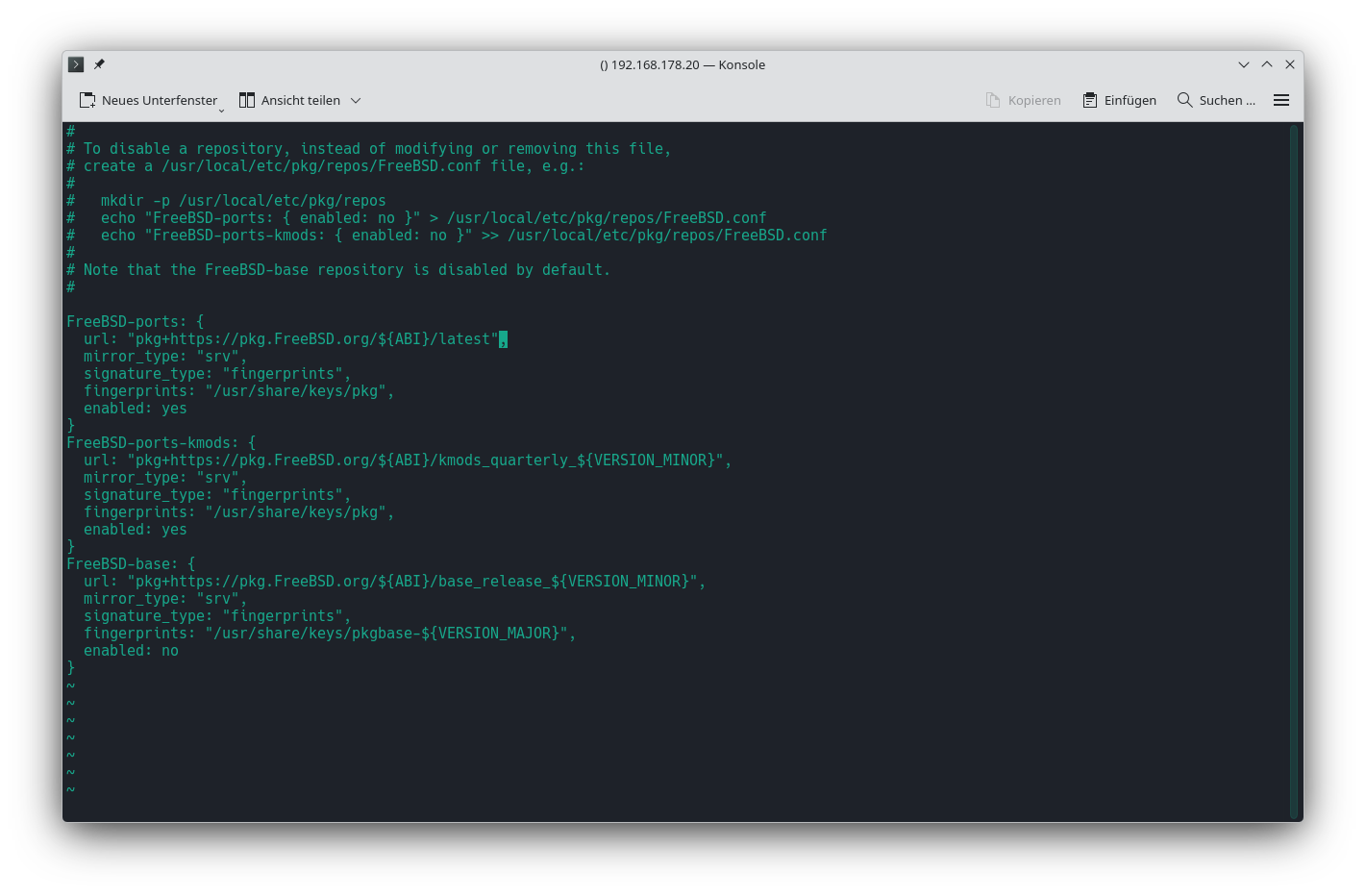
Paketverwaltung umstellen
Paketverwaltung von vierteljährlichen Updates auf Aktuell umstellen.
vi /etc/pkg/FreeBSD.conf
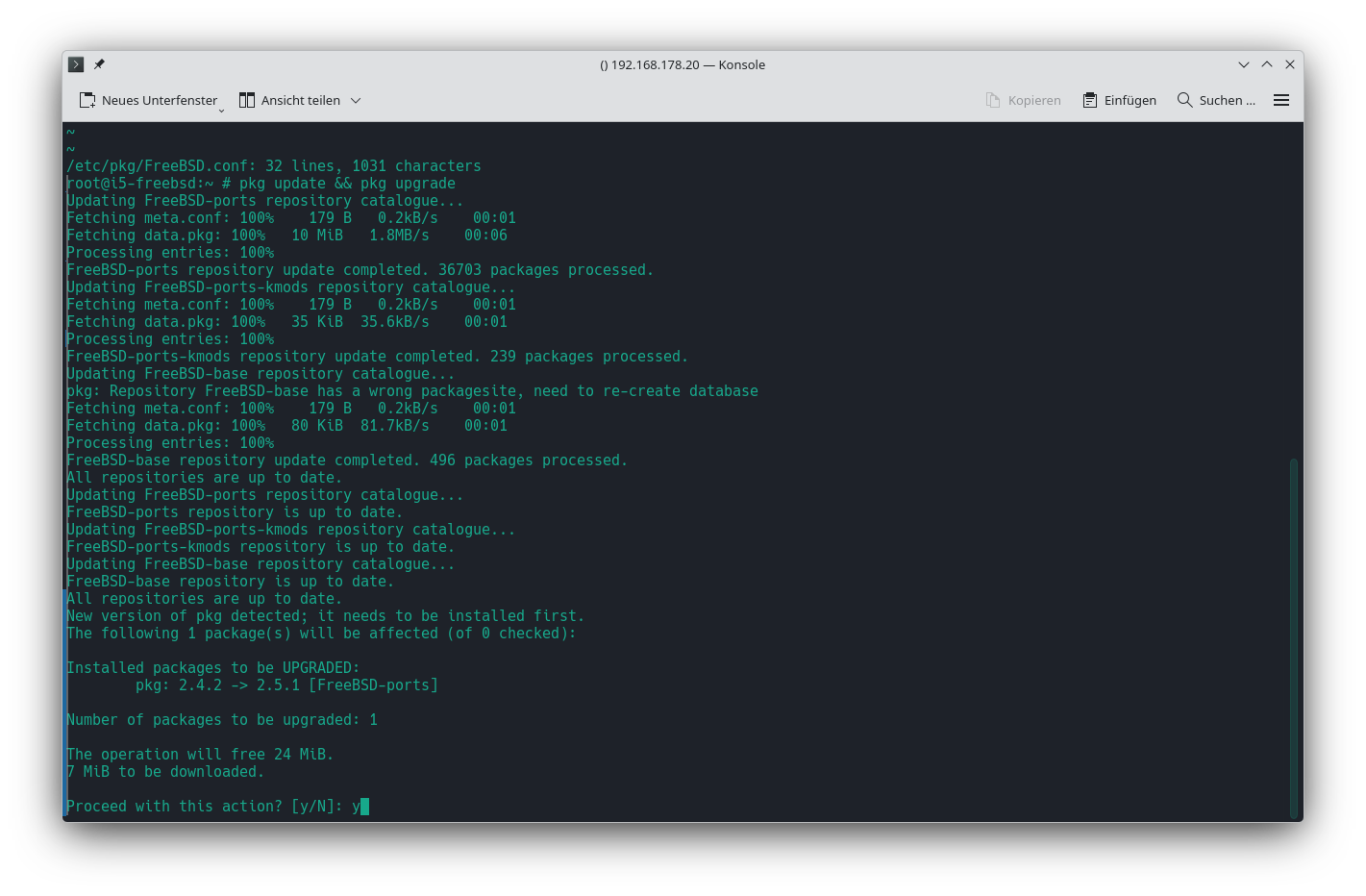
Danach die Repositories aktualisieren lassen.
pkg update && pkg upgrade
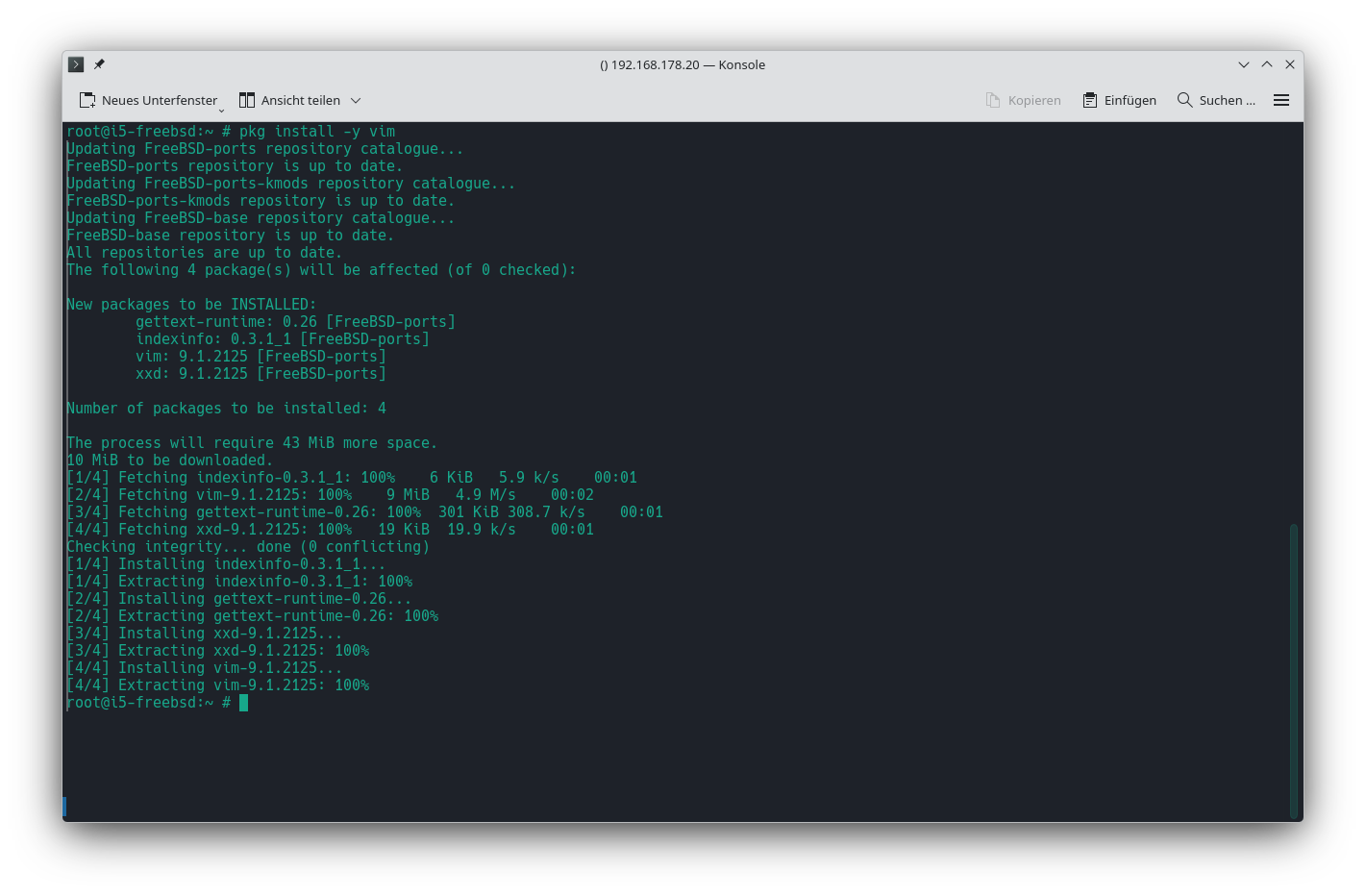
Installation vim
pkg install -y vim
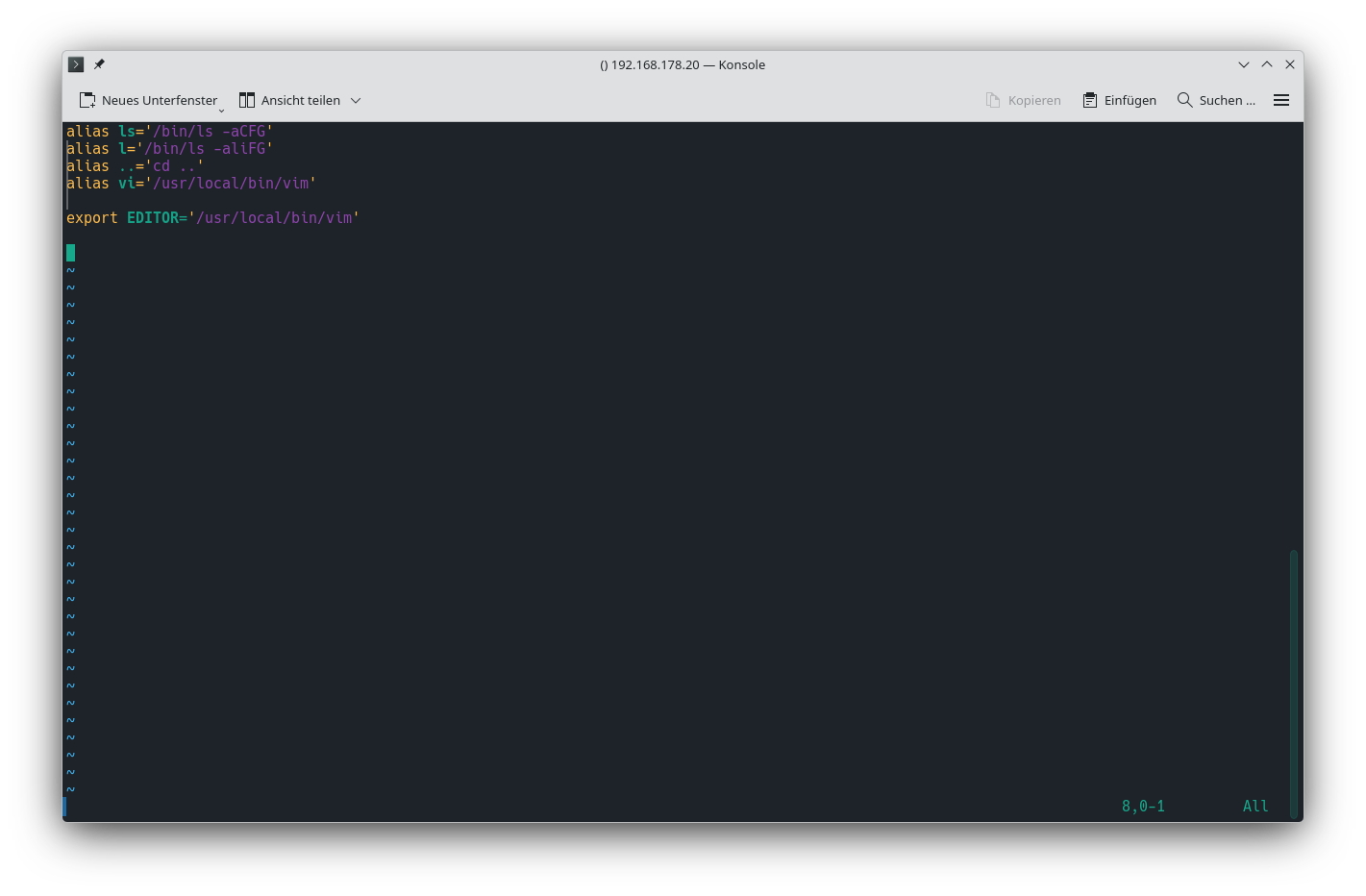
Aliasse und Environment
vim /etc/profile.d/local.sh
- local.sh
alias ls='/bin/ls -aCFG'
alias l='/bin/ls -aliFG'
alias ..='cd ..'
alias vi='/usr/local/bin/vim'

export EDITOR='/usr/local/bin/vim'
Neu einloggen, damit die Änderung im Profil verarbeitet werden.
ZFS-Pool auf die HDDs legen
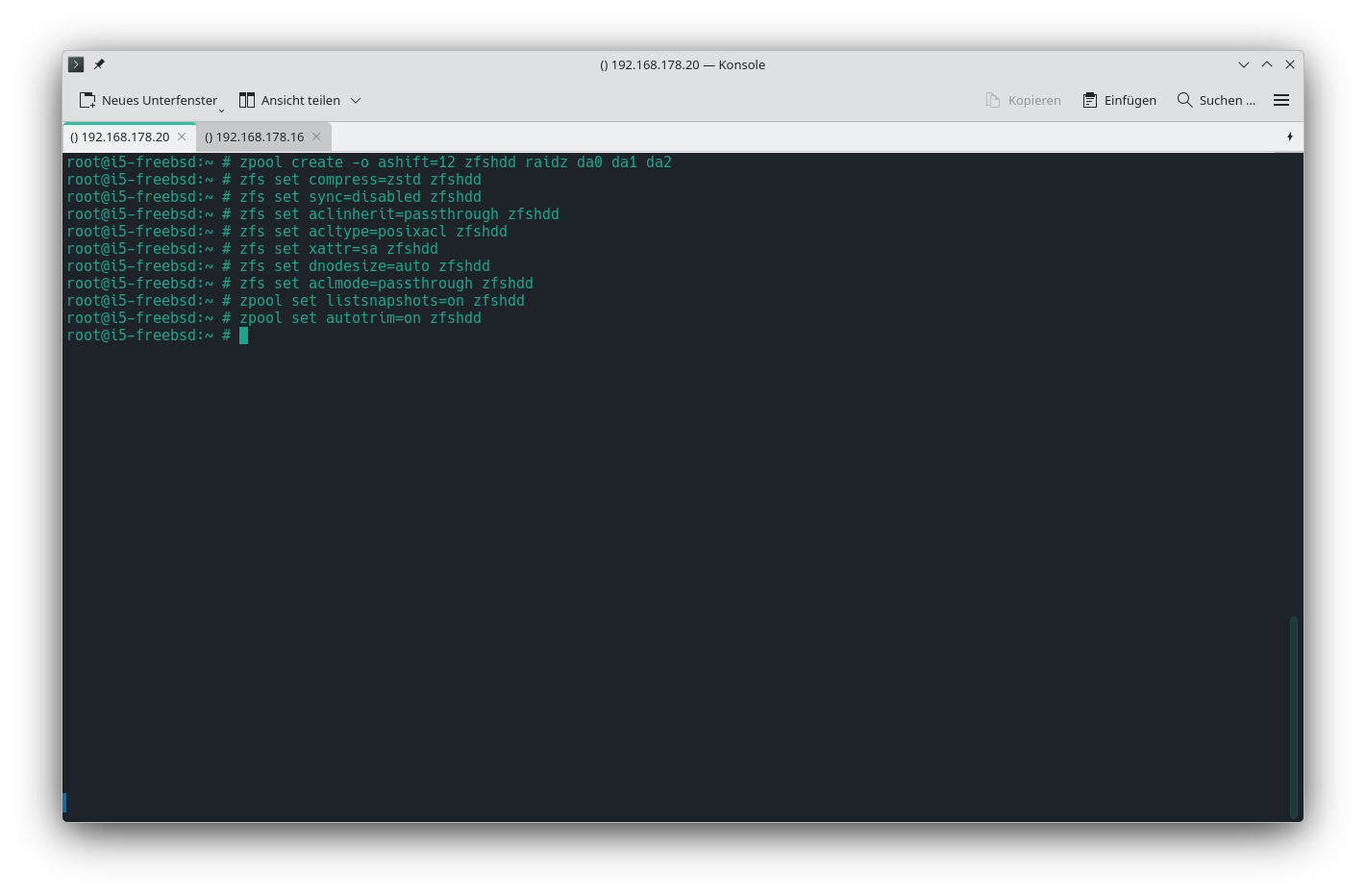
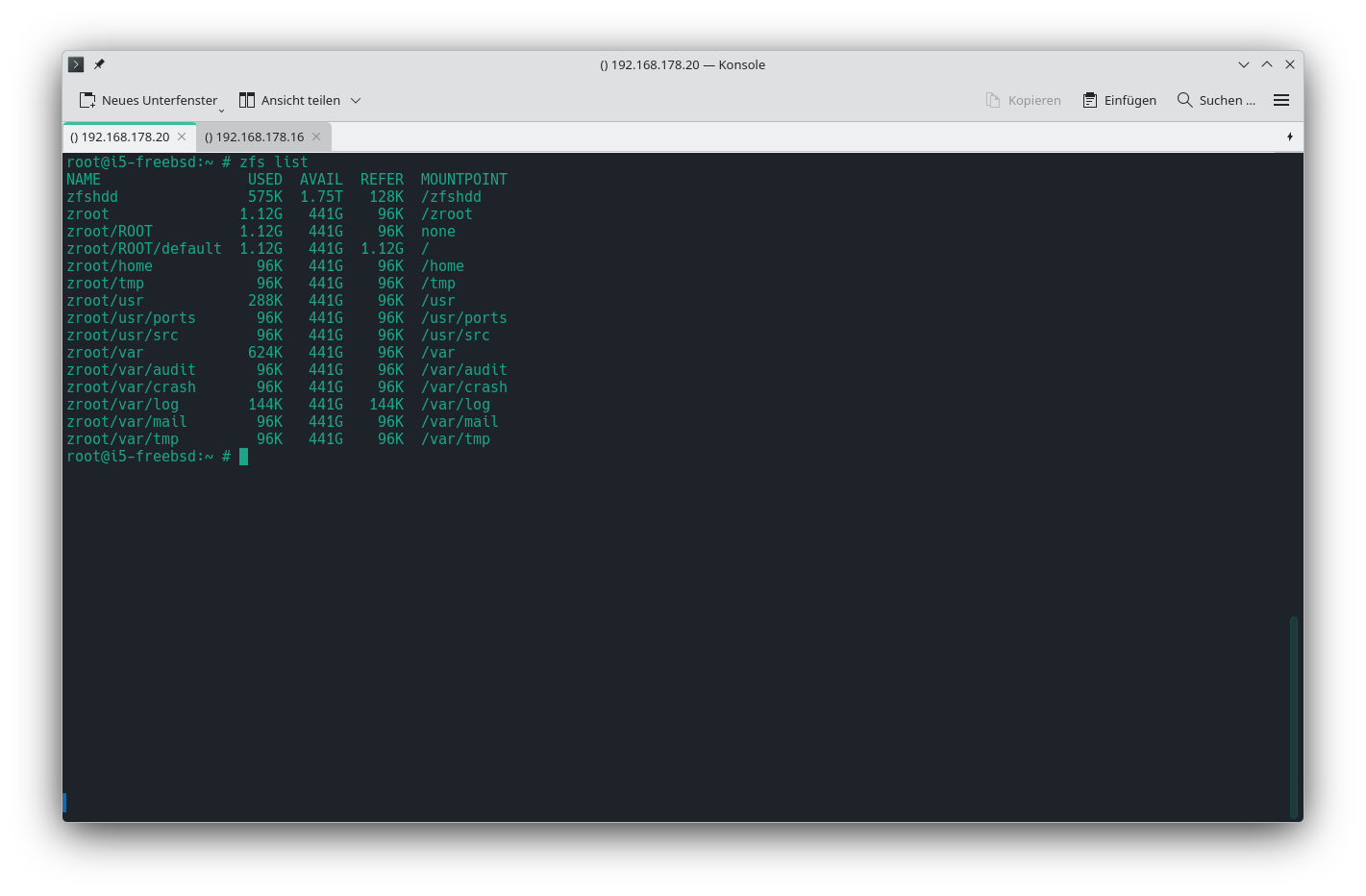
Bei BSD gibt es die Verzeichnisstruktur /dev/disk/by-id nicht wie in Linux. Die Festplatten werden mit ihren regulären Laufwerksbezeichnungen (hier da0, da1 und da2 angegeben.
zpool create -o ashift=12 zfshdd raidz da0 da1 da2
Danach div. Einstellungen für den Pool vornehmen.
zfs set compress=zstd zfshdd
zfs set sync=disabled zfshdd
zfs set aclinherit=passthrough zfshdd
zfs set acltype=posixacl zfshdd
zfs set xattr=sa zfshdd
zfs set dnodesize=auto zfshdd
zfs set aclmode=passthrough zfshdd
zpool set listsnapshots=on zfshdd
zpool set autotrim=on zfshdd
MariaDB
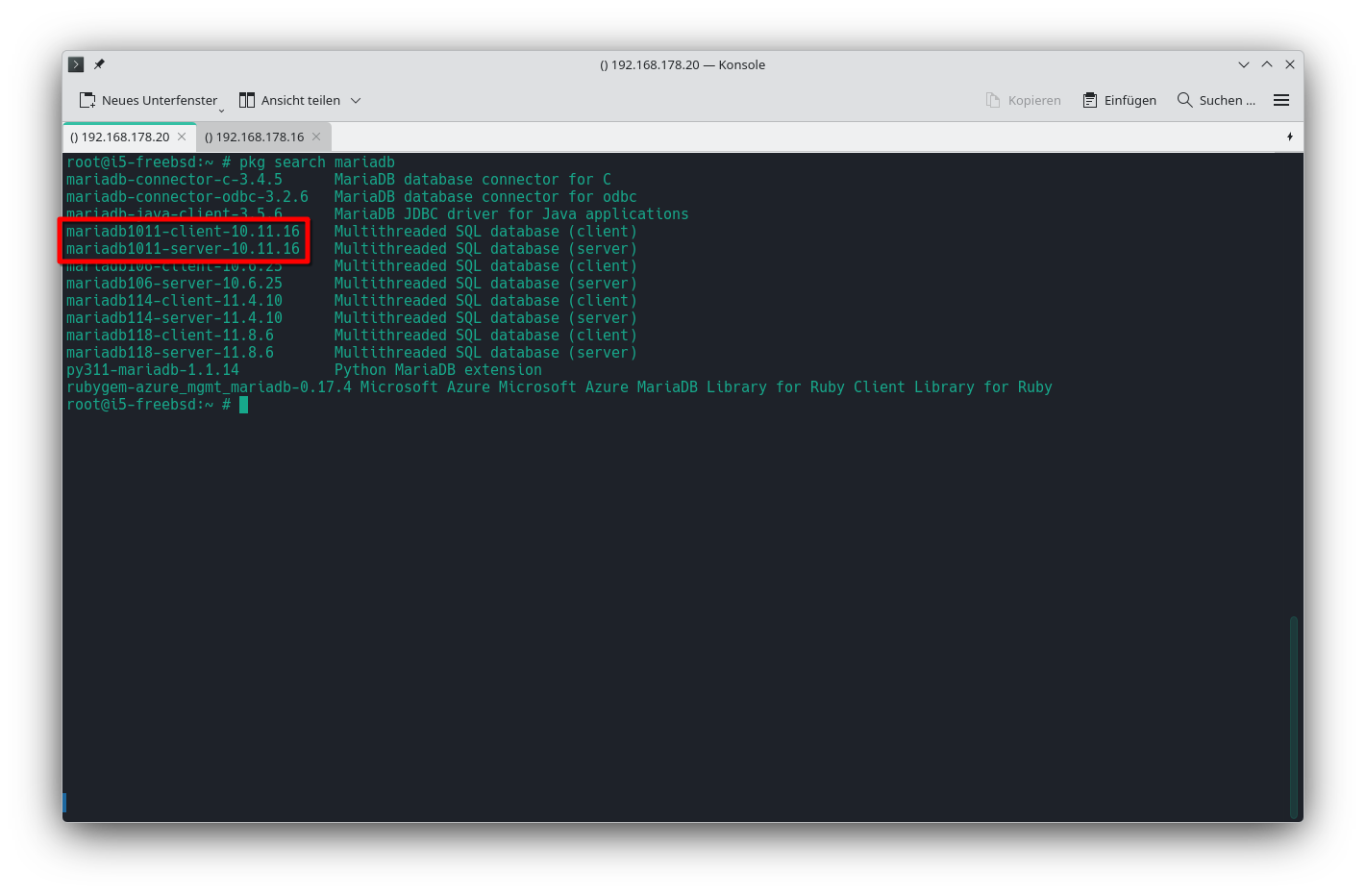
Installation
pkg install -y mariadb1011-server mariadb1011-client
Schlußmeldung nach der Installation
Message from galera26-26.4.25:
Find the Galera Cluster documentation at https://galeracluster.com/library/documentation/index.html
Message from mariadb1011-client-10.11.16:
MariaDB respects hier(7) and doesn't check /etc and /etc/mysql for my.cnf. Please move existing my.cnf files from those paths to /usr/local/etc/mysql or /usr/local/etc. Sample configuration files are provided in /usr/local/etc/mysql and /usr/local/etc/mysql/conf.d. The rc(8) script no longer uses /var/db/mysql/my.cnf for configuration nor /var/db/mysql for logs and PID-file.
This port does NOT include the mytop perl script, this is included in the MariaDB tarball but the most recent version can be found in the databases/mytop port
WSREP
Using wsrep clustering requires adding a configuration file. Copy /usr/local/etc/mysql/conf.d/wsrep.cnf.sample to /usr/local/etc/mysql/conf.d/wsrep.cnf and change what you need there.
Message from mariadb1011-server-10.11.16:
MariaDB respects hier(7) and doesn't check /etc and /etc/mysql for my.cnf. Please move existing my.cnf files from those paths to /usr/local/etc/mysql or /usr/local/etc. Sample configuration files are provided in /usr/local/etc/mysql and /usr/local/etc/mysql/conf.d. The rc(8) script no longer uses /var/db/mysql/my.cnf for configuration nor /var/db/mysql for logs and PID-file.
This port does NOT include the mytop perl script, this is included in the MariaDB tarball but the most recent version can be found in the databases/mytop port
Using wsrep clustering requires adding a configuration file. Copy /usr/local/etc/mysql/conf.d/wsrep.cnf.sample to /usr/local/etc/mysql/conf.d/wsrep.cnf and change what you need there.
Nach erfolgter Installation MariaDB für den automatischen Start eintragen.
sysrc mysql_server_enable="YES"
sysrc mysql_dbdir="/var/db/mysql/data"
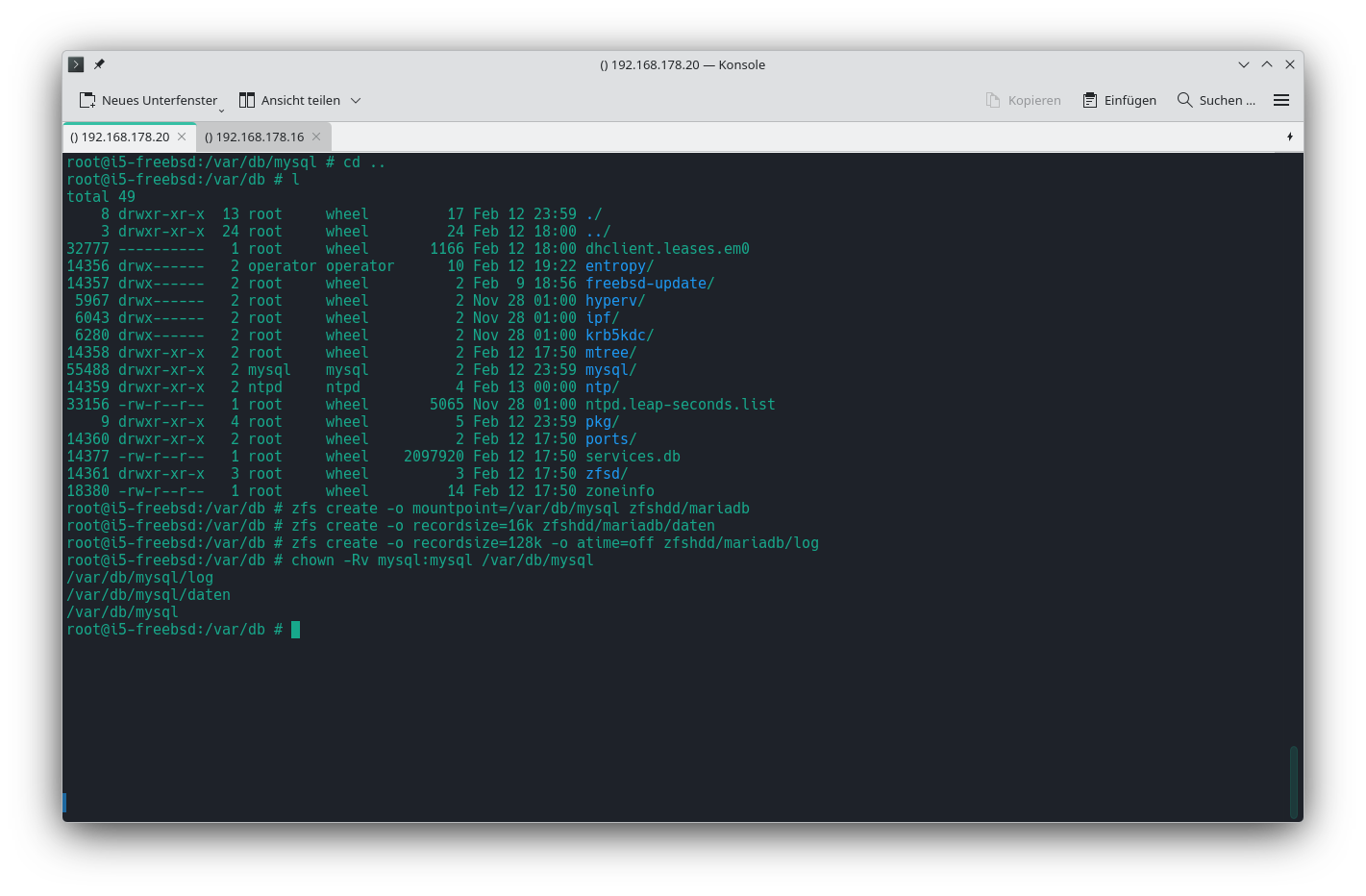
ZFS-Dataset für das Datenverzeichnis erstellen
zfs create -o mountpoint=/var/db/mysql zfshdd/mariadb
zfs create -o recordsize=16k zfshdd/mariadb/data
zfs create -o recordsize=128k -o atime=off zfshdd/mariadb/log
chown -Rv mysql:mysql /var/db/mysql
chmod 700 /var/db/mysql/data
zfs list
NAME                   USED  AVAIL  REFER  MOUNTPOINT
zfshdd                1.01M  1.75T   128K  /zfshdd
zfshdd/mariadb         394K  1.75T   139K  /var/db/mysql
zfshdd/mariadb/daten   128K  1.75T   128K  /var/db/mysql/daten
zfshdd/mariadb/log     128K  1.75T   128K  /var/db/mysql/log
MariaDB Konfiguration
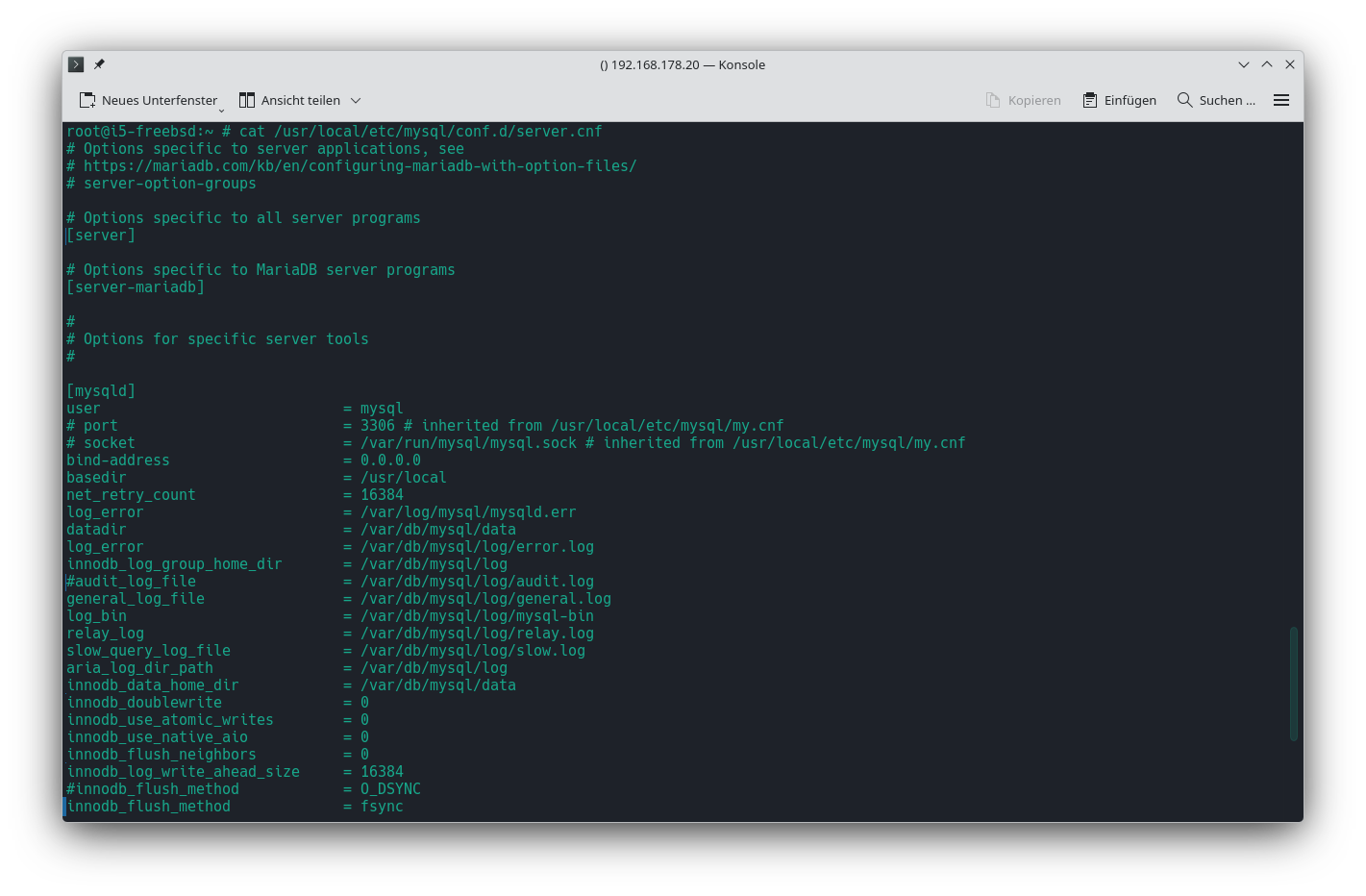
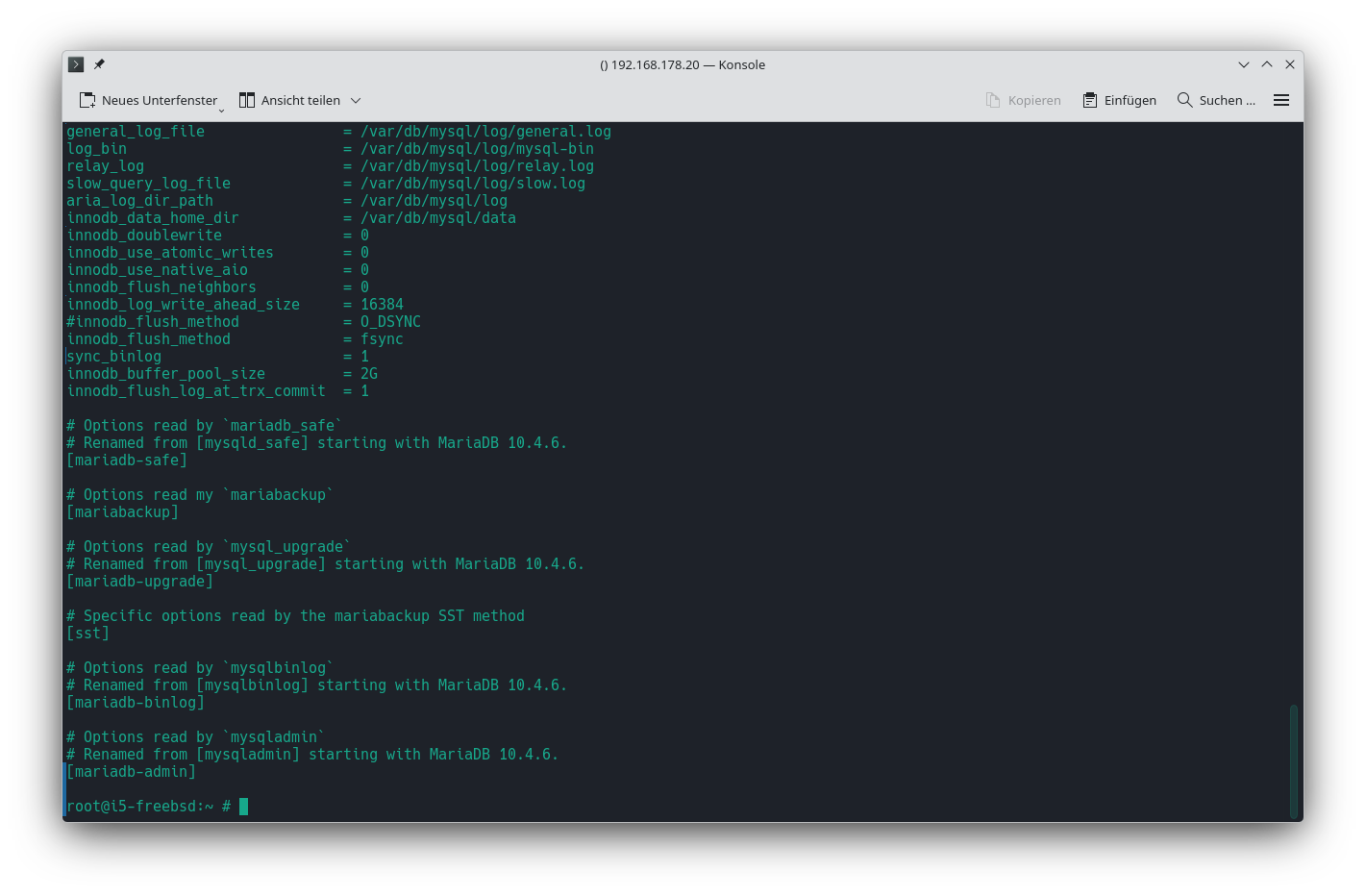
/usr/local/etc/mysql/conf.d/server.cnf
- server.cnf
# Options specific to server applications, see
# https://mariadb.com/kb/en/configuring-mariadb-with-option-files/
# server-option-groups

# Options specific to all server programs
[server]

# Options specific to MariaDB server programs
[server-mariadb]

#
# Options for specific server tools
#

[mysqld]
user                            = mysql
# port                          = 3306 # inherited from /usr/local/etc/mysql/my.cnf
# socket                        = /var/run/mysql/mysql.sock # inherited from /usr/local/etc/mysql/my.cnf
bind-address                    = 0.0.0.0
basedir                         = /usr/local
net_retry_count                 = 16384
log_error                       = /var/log/mysql/mysqld.err
datadir                         = /var/db/mysql/data
log_error                       = /var/db/mysql/log/error.log
innodb_log_group_home_dir       = /var/db/mysql/log
#audit_log_file                 = /var/db/mysql/log/audit.log
general_log_file                = /var/db/mysql/log/general.log
log_bin                         = /var/db/mysql/log/mysql-bin
relay_log                       = /var/db/mysql/log/relay.log
slow_query_log_file             = /var/db/mysql/log/slow.log
aria_log_dir_path               = /var/db/mysql/log
innodb_data_home_dir            = /var/db/mysql/data
innodb_doublewrite              = 0
innodb_use_atomic_writes        = 0
innodb_use_native_aio           = 0
innodb_flush_neighbors          = 0
innodb_log_write_ahead_size     = 16384
#innodb_flush_method            = O_DSYNC
innodb_flush_method             = fsync
sync_binlog                     = 1
innodb_buffer_pool_size         = 2G
innodb_flush_log_at_trx_commit  = 1

# Options read by `mariadb_safe`
# Renamed from [mysqld_safe] starting with MariaDB 10.4.6.
[mariadb-safe]

# Options read my `mariabackup`
[mariabackup]

# Options read by `mysql_upgrade`
# Renamed from [mysql_upgrade] starting with MariaDB 10.4.6.
[mariadb-upgrade]

# Specific options read by the mariabackup SST method
[sst]

# Options read by `mysqlbinlog`
# Renamed from [mysqlbinlog] starting with MariaDB 10.4.6.
[mariadb-binlog]

# Options read by `mysqladmin`
# Renamed from [mysqladmin] starting with MariaDB 10.4.6.
[mariadb-admin]
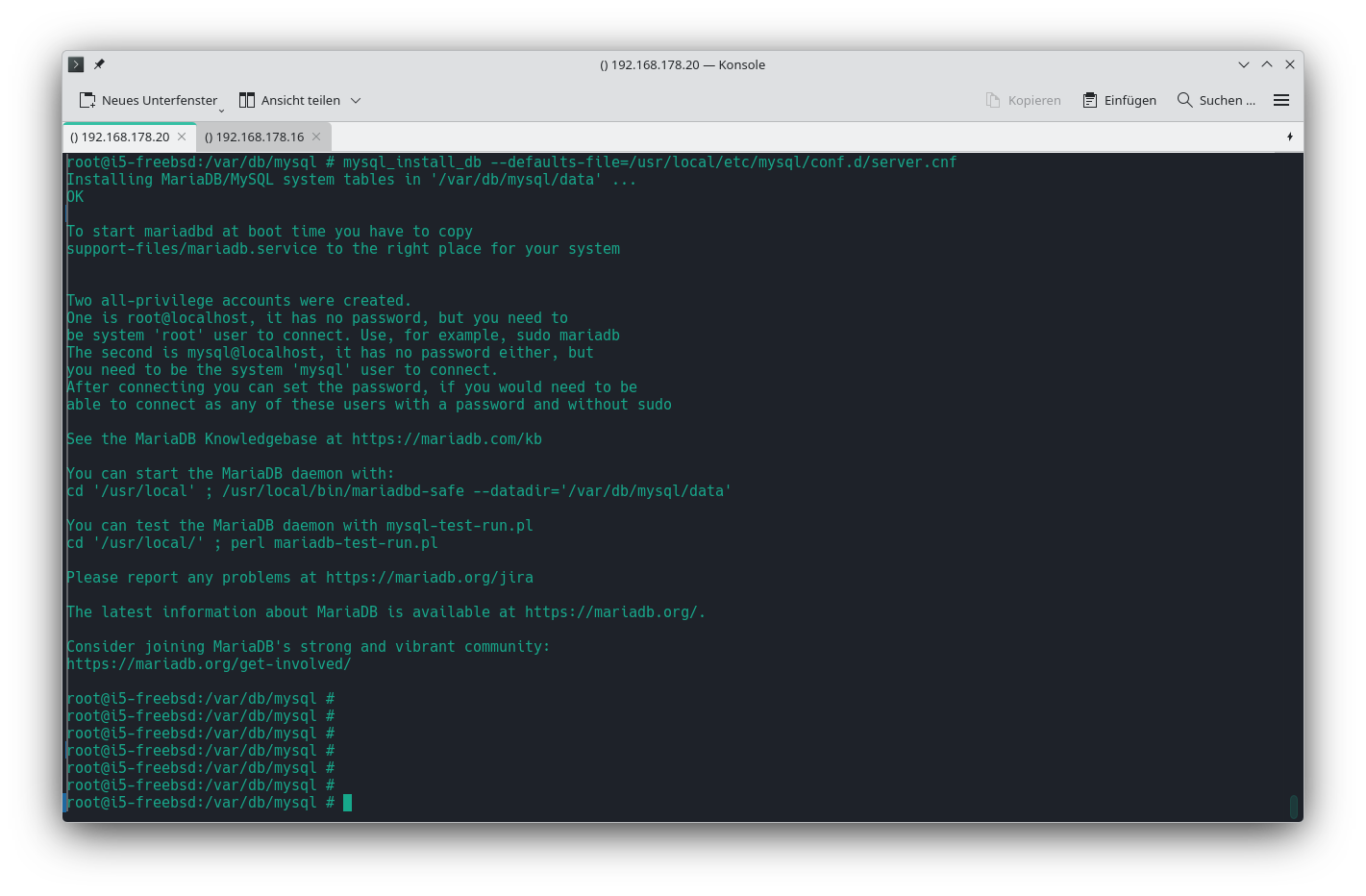
MariaDB Datendateien erstellen & Zugänge sichern
mysql_install_db --defaults-file=/usr/local/etc/mysql/conf.d/server.cnf
Nachdem die Datendateien erstellt sind, die User-Accounts sichern. Zuvor den SQL-Server starten.
service mysql-server start
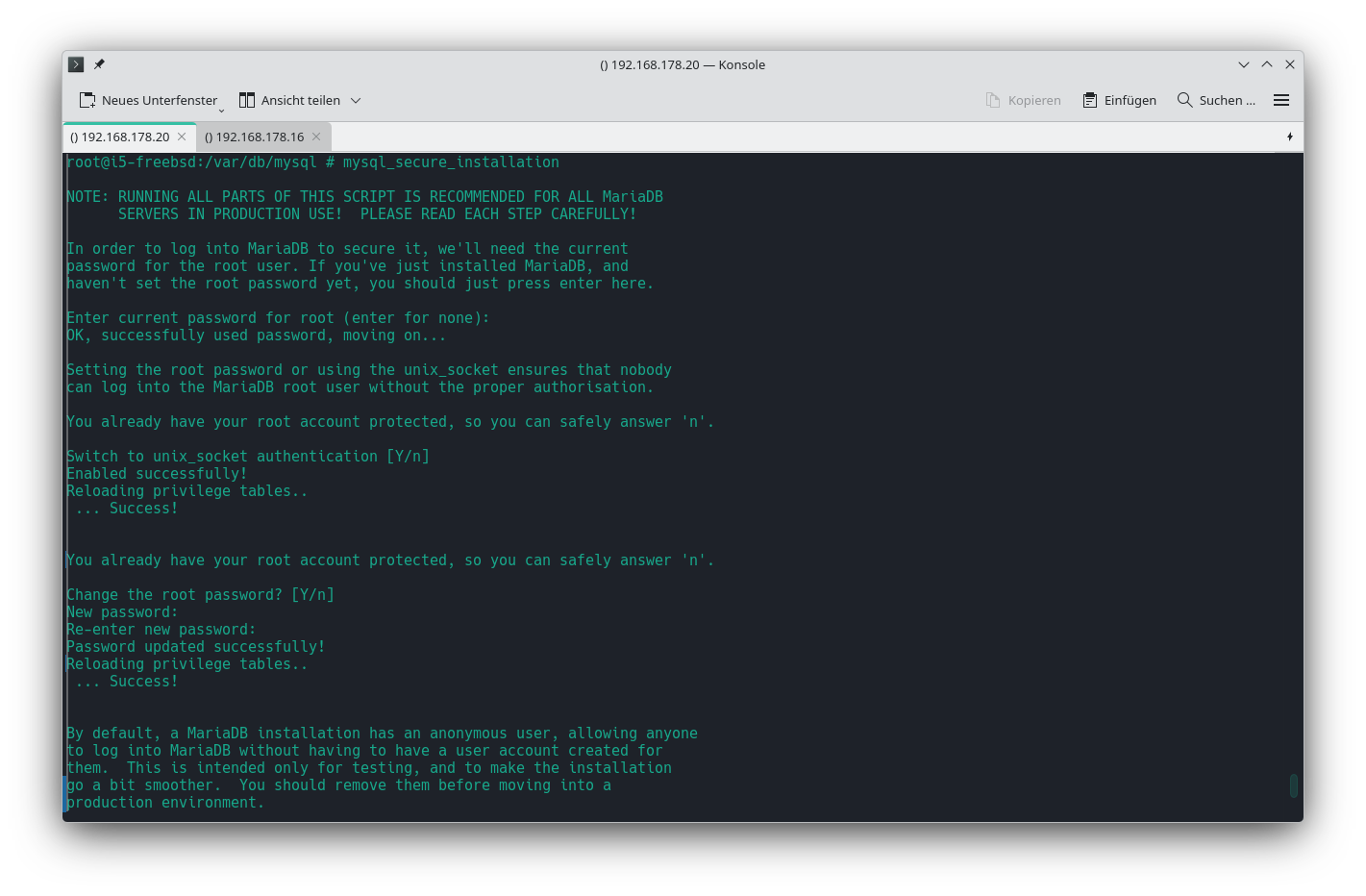
mysql_secure_installation
mysql_secure_installation
NOTE: RUNNING ALL PARTS OF THIS SCRIPT IS RECOMMENDED FOR ALL MariaDB SERVERS IN PRODUCTION USE! PLEASE READ EACH STEP CAREFULLY!
In order to log into MariaDB to secure it, we'll need the current password for the root user. If you've just installed MariaDB, and haven't set the root password yet, you should just press enter here.
Enter current password for root (enter for none): ENTER
OK, successfully used password, moving on…
Setting the root password or using the unix_socket ensures that nobody can log into the MariaDB root user without the proper authorisation.
You already have your root account protected, so you can safely answer 'n'.
Switch to unix_socket authentication [Y/n] Y
Enabled successfully!
Reloading privilege tables..
… Success!
You already have your root account protected, so you can safely answer 'n'.
Change the root password? [Y/n] Y
New password:
Re-enter new password:
Password updated successfully!
Reloading privilege tables..
… Success!
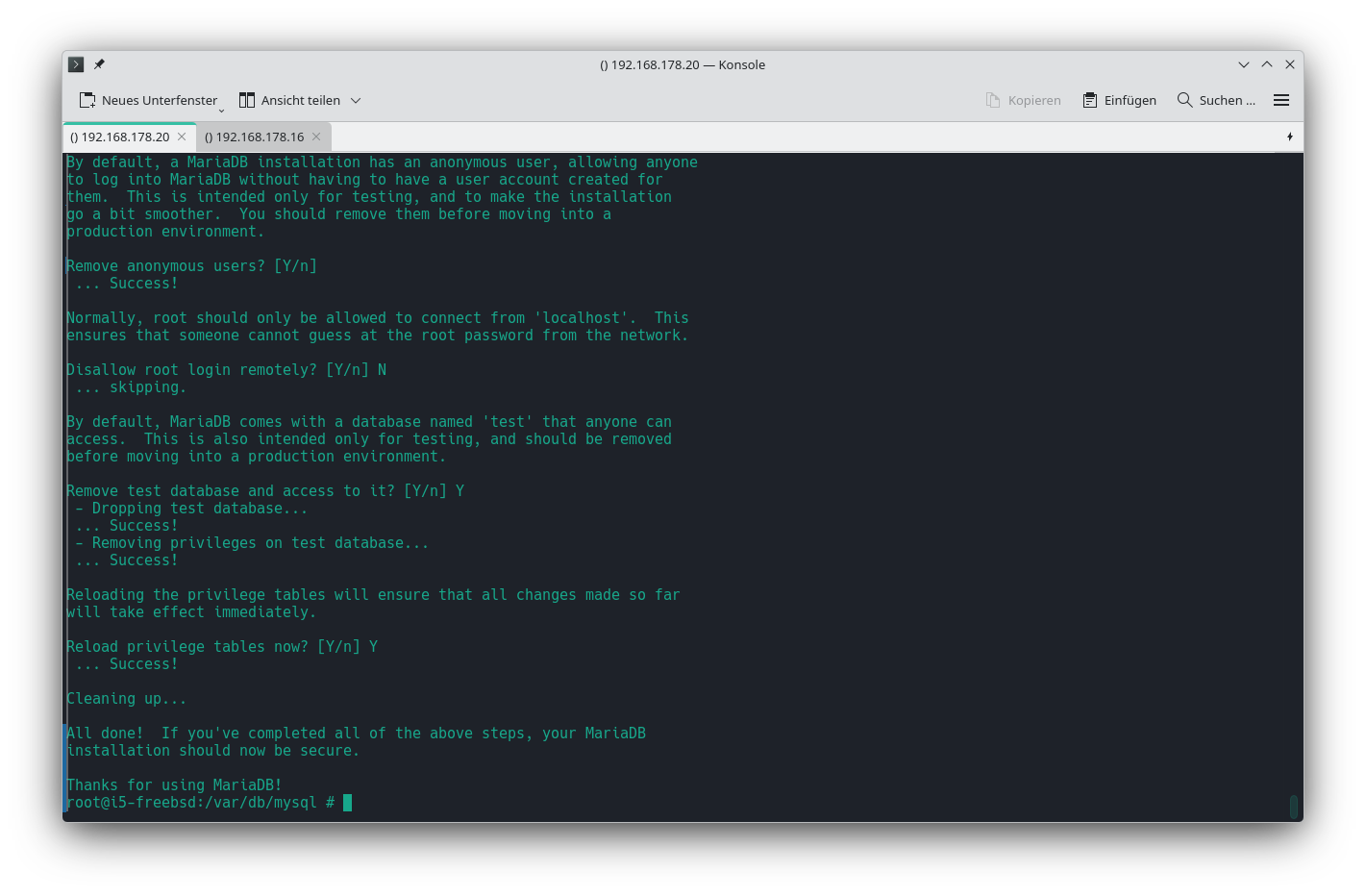
By default, a MariaDB installation has an anonymous user, allowing anyone to log into MariaDB without having to have a user account created for them. This is intended only for testing, and to make the installation go a bit smoother. You should remove them before moving into a production environment.
Remove anonymous users? [Y/n] Y
… Success!
Normally, root should only be allowed to connect from 'localhost'. This ensures that someone cannot guess at the root password from the network.
Disallow root login remotely? [Y/n] N
… skipping.
By default, MariaDB comes with a database named 'test' that anyone can access. This is also intended only for testing, and should be removed before moving into a production environment.
Remove test database and access to it? [Y/n] Y
- Dropping test database…
… Success!
- Removing privileges on test database…
… Success!
Reloading the privilege tables will ensure that all changes made so far will take effect immediately.
Reload privilege tables now? [Y/n] Y
… Success!
Cleaning up…
All done! If you've completed all of the above steps, your MariaDB installation should now be secure.
Thanks for using MariaDB!
Zusätzliche Benutzer & Datenbanken
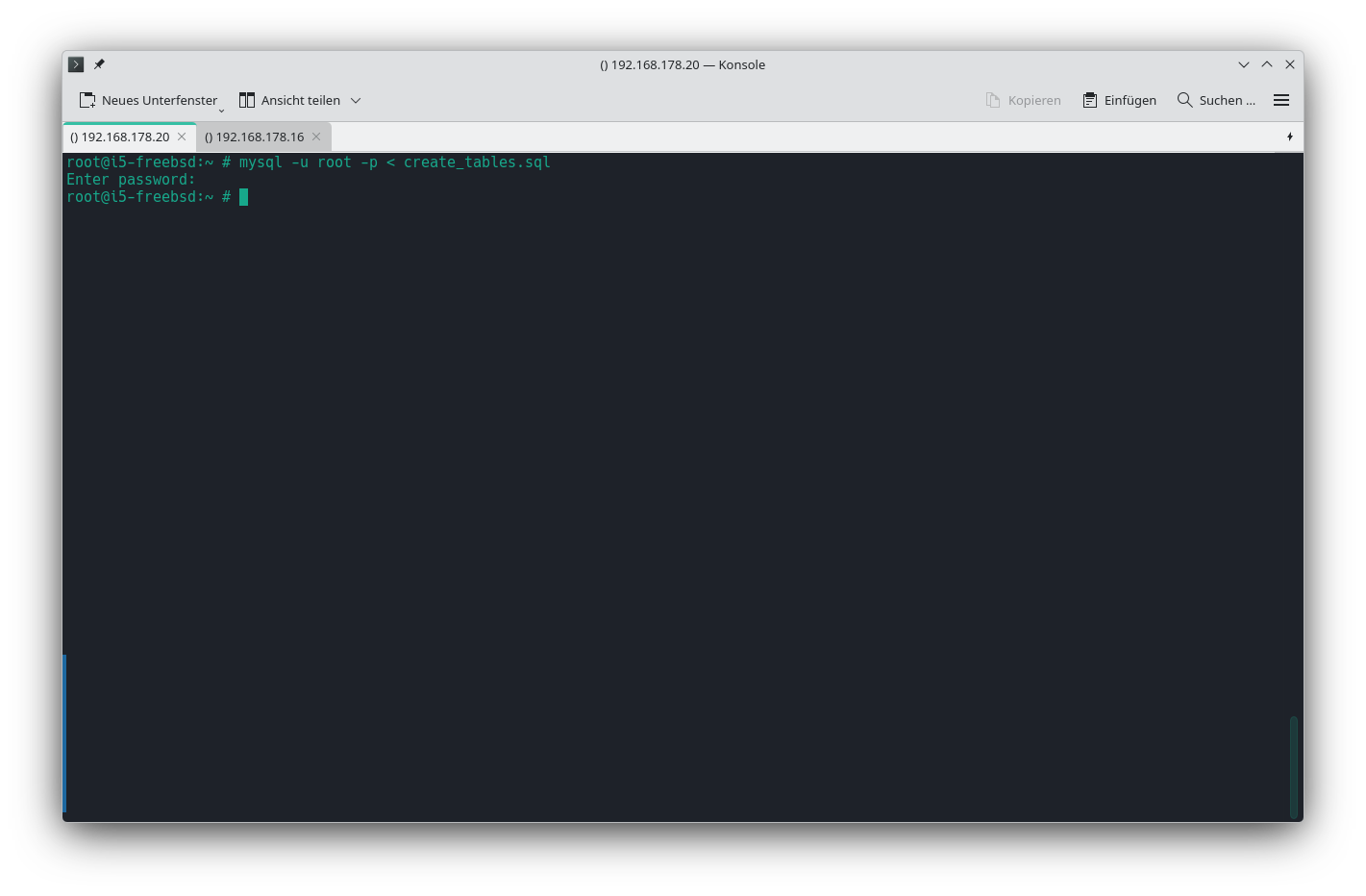
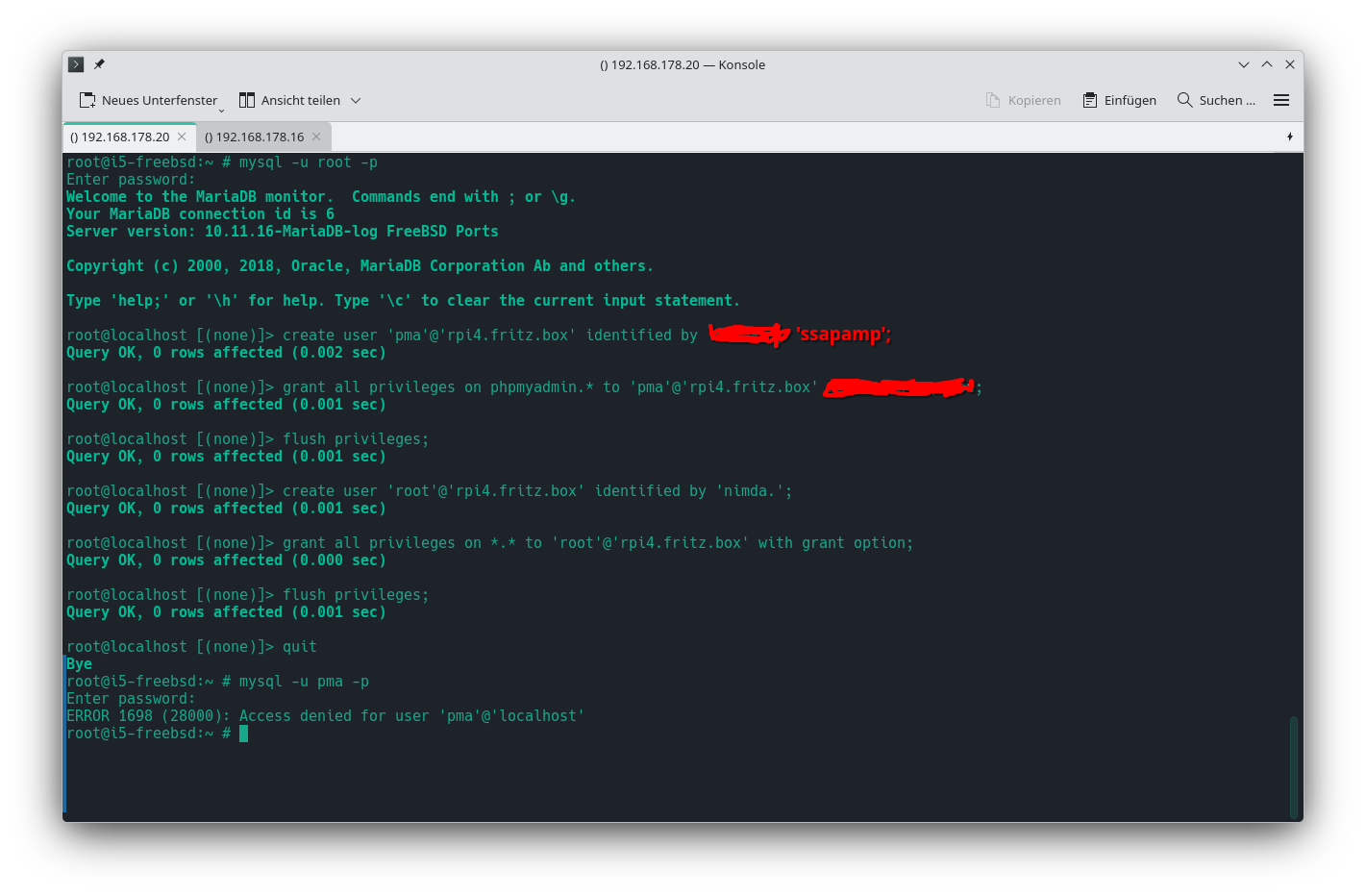
Zuerst die nötige Datenbank für phpMyAdmin einspielen. Dazu die create_tables.sql aus dem jeweiligen SQL-Verzeichnis von phpMyAdmin durchlaufen lassen.
mysql -u root -p < create_tables.sql
Als nächstes den Control-User für phpMyAdmin erstellen und die Rechte für die Datenbank phpmyadmin zuweisen. Der Host (hier: rpi4.fritz.box) muß entsprechend angepaßt werden. Zusätzlich einen root-User für zuvor genannten Host anlegen.
mysql -u root -p
create user 'pma'@'rpi4.fritz.box' identified by 'ssapamp';
grant all privileges on phpmyadmin.* to 'pma'@'rpi4.fritz.box' with grant option;
flush privileges;

create user 'root'@'rpi4.fritz.box' identified by 'nimda.';
grant all privileges on *.* to 'root'@'rpi4.fritz.box' with grant option;
flush privileges;
UrBackup
Installation
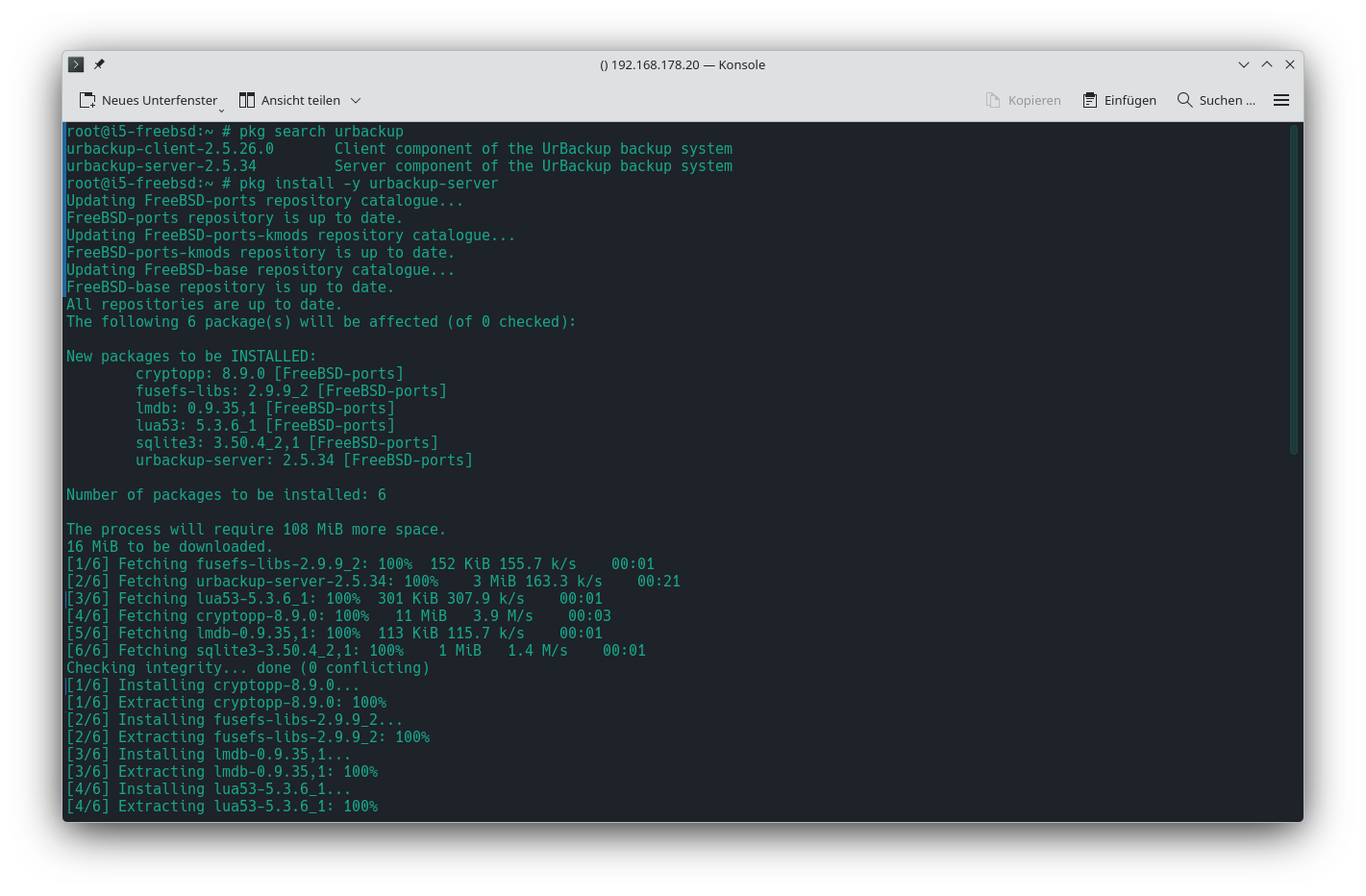
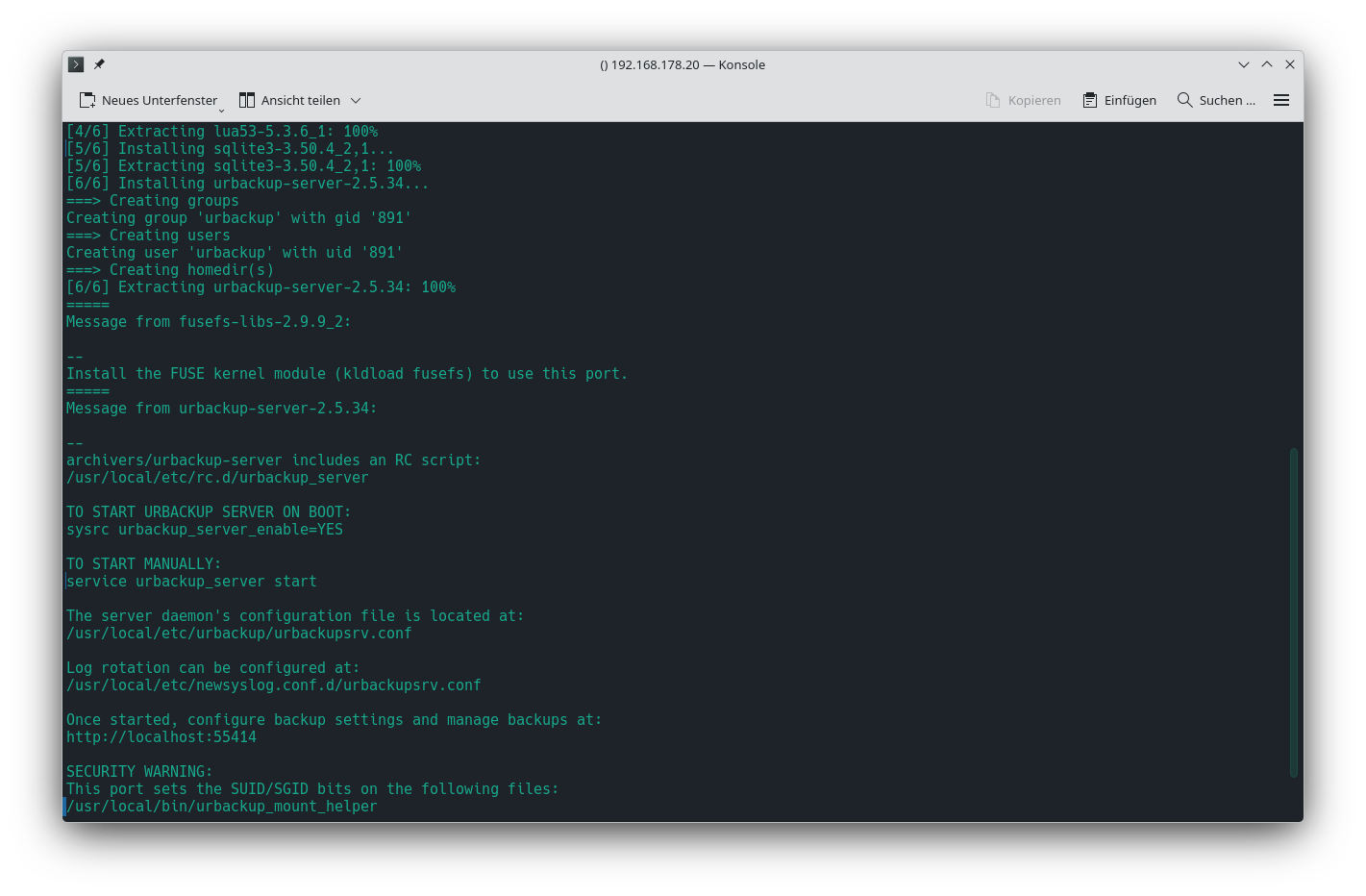
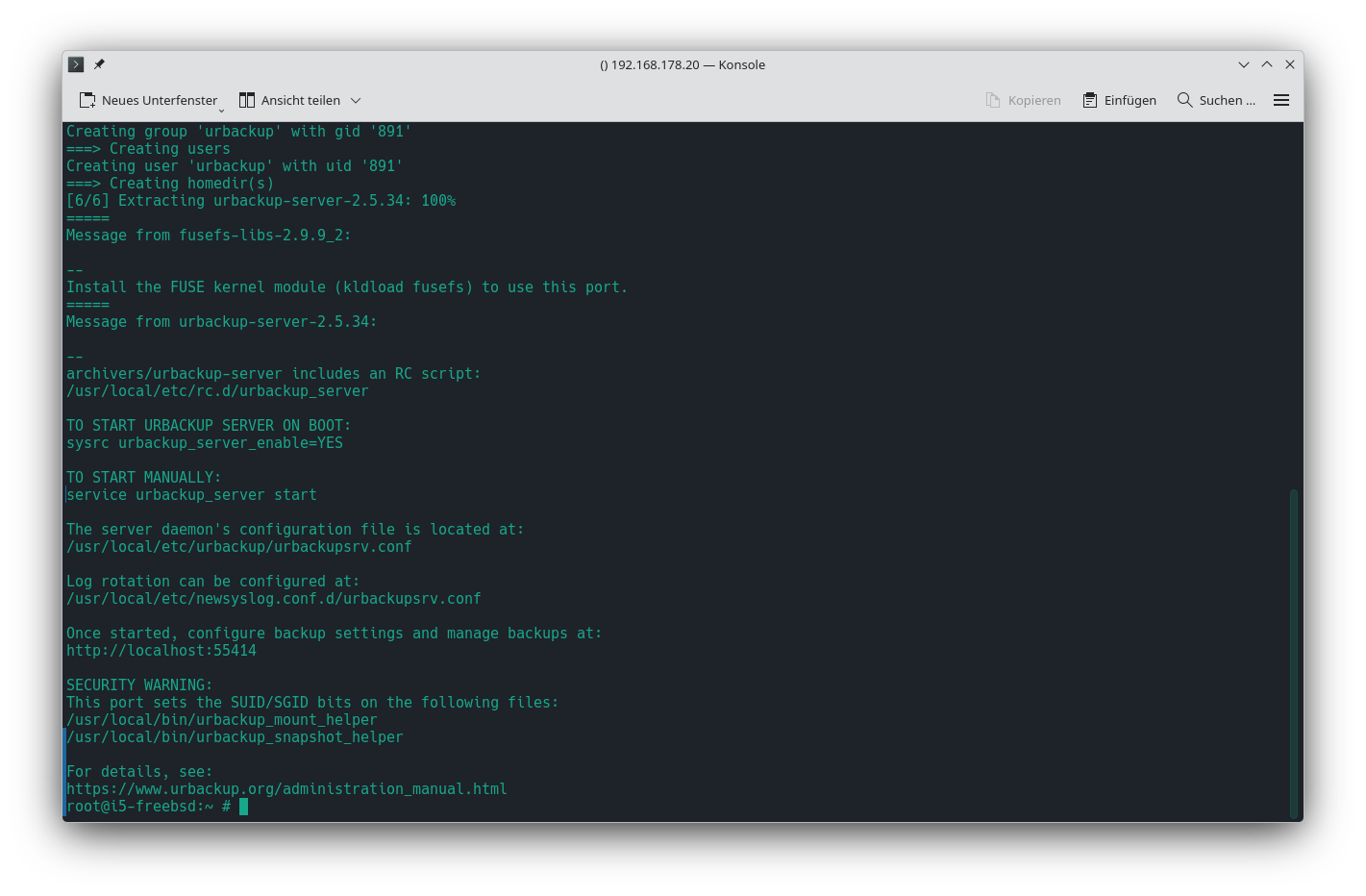
pkg install -y urbackup-server
- Die Konfigurationsdateien liegen unter
/usr/local/etc/urbackup. - UrBackup legt seine Datenbank immer unter
/var/urbackupan. Daher erhält das entsprechende Dataset einen Mountpoint mit auf den Weg. - Des Weiteren kann UrBackup, wenn das Ziel eine ZFS-Struktur ist, die Image-Backups der Clients als separate ZFS-Datasets erstellen.
- Der UrBackup-Server läuft regulär unter dem User
urbackup. In den verschiedenen ZFS-Versionen kann dieser User die Image-Datasets nicht verwalten. Somit muß der User aufrootim Späteren umgestellt werden. - Bei den File-Backups wird eine Deduplikation über sog. RefLinks vorgenommen. Dies geht bei Image-Datasets nicht und daher wird beim ZFS die Dedup-Funktion aktiviert, so daß sich ZFS ums Platz sparen kümmert.
ZFS-Datasets erstellen
zfs create zfshdd/urbackup
zfs create -o mountpoint=/var/urbackup zfshdd/urbackup/db
zfs create zfshdd/urbackup/backups
zfs create -o dedup=on zfshdd/urbackup/images
Eigentümer setzen
chown -Rv root:urbackup /var/urbackup
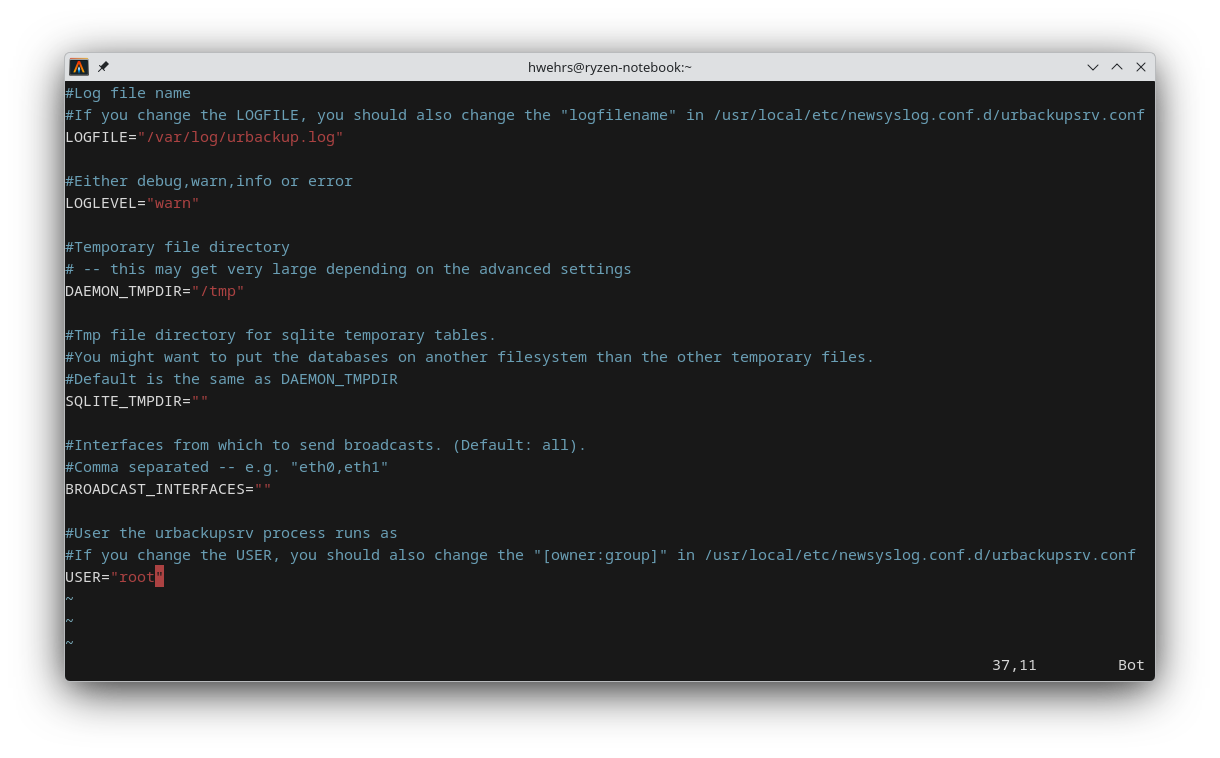
Run-As-User einstellen
In der Datei /usr/local/etc/urbackup/urbackupsrv.conf ganz am Ende den Eintrag USER=„urbackup“ in USER=„root“ ändern.
Alle anderen Einstellungen in der Datei bleiben unverändert.